Pages

Showing posts with label beginners. Show all posts

Monday, April 18, 2016

Spinner View Android Beginner Dev Tutorial

This is again another very simple tutorial on using a Spinner View provided by Android SDK. A spinner is supposed to be a view that displays one child at a time (Whatever that means).


This example is very similar to the previous one on AutoCompleteTextView.

Jumping right into the code, here is the layout xml file:

<Spinner
android:id="@+id/Spinner01"
android:layout_width="wrap_content"
android:layout_height="wrap_content"
android:drawSelectorOnTop = "true"></Spinner>


Nothing special. It just consists of one element.

Now in the main activity, I create an array of android books:

String[] androidBooks =
{
"Hello, Android - Ed Burnette",
"Professional Android 2 App Dev - Reto Meier",
"Unlocking Android - Frank Ableson",
"Android App Development - Blake Meike",
"Pro Android 2 - Dave MacLean",
"Beginning Android 2 - Mark Murphy",
"Android Programming Tutorials - Mark Murphy",
"Android Wireless App Development - Lauren Darcey",
"Pro Android Games - Vladimir Silva",
};

Then in the onCreate() method, I create an ArrayAdapter that I can pass to this Spinner as the data Source.

ArrayAdapter<String> adapter =
        new ArrayAdapter<String> (this,
        android.R.layout.simple_spinner_item,androidBooks);

Then, I get a handle to the Spinner, and set the ArrayAdapter to it

sp = (Spinner)findViewById(R.id.Spinner01);
sp.setAdapter(adapter);

Now, on selecting one of the items in the spinner, I want to be able to toast a message on the book that was selected. It is done as follows:

sp.setOnItemSelectedListener(new OnItemSelectedListener() {
    @Override
    public void onItemSelected(AdapterView<?> arg0, View arg1, int arg2, long arg3) {
        int item = sp.getSelectedItemPosition();
        Toast.makeText(getBaseContext(),
            "You have selected the book: " + androidBooks[item],
            Toast.LENGTH_SHORT).show();
    }


    @Override
    public void onNothingSelected(AdapterView<?> arg0) {
    }
});
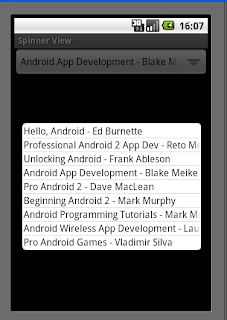
That is it. Now execute and see it work. Here is how it would look:

The example code can be downloaded here.
Read More..

Thursday, April 14, 2016

Android Programming for Beginners

Learn all the Java and Android skills you need to start making powerful mobile applications

Android Programming for Beginners

About This Book
  • Kick-start your Android programming career, or just have fun publishing apps to the Google Play marketplace
  • A first-principles introduction to Java, via Android, which means youll be able to start building your own applications from scratch
  • Learn by example and build three real-world apps and over 40 mini apps throughout the book
Who This Book Is For
Are you trying to start a career in programming, but havent found the right way in? Do you have a great idea for an app, but dont know how to make it a reality? Or maybe youre just frustrated that "to learn Android, you must know Android." If so, Android Programming for Beginners is for you. You dont need any programming experience to follow along with this book, just a computer and a sense of adventure.

What You Will Learn
  • Master the fundamentals of coding Java for Android
  • Install and set up your Android development environment
  • Build functional user interfaces with the Android Studio visual designer
  • Add user interaction, data captures, sound, and animation to your apps
  • Manage your apps data using the built-in Android SQLite database
  • Find out about the design patterns used by professionals to make top-grade applications
  • Build, deploy, and publish real Android applications to the Google Play marketplace
In Detail
Android is the most popular OS in the world. There are millions of devices accessing tens of thousands of applications. It is many peoples entry point into the world of technology; it is an operating system for everyone. Despite this, the entry-fee to actually make Android applications is usually a computer science degree, or five years worth of Java experience.

Android Programming for Beginners will be your companion to create Android applications from scratch-whether youre looking to start your programming career, make an application for work, be reintroduced to mobile development, or are just looking to program for fun. We will introduce you to all the fundamental concepts of programming in an Android context, from the Java basics to working with the Android API. All examples are created from within Android Studio, the official Android development environment that helps supercharge your application development process.

After this crash-course, well dive deeper into Android programming and youll learn how to create applications with a professional-standard UI through fragments, make location-aware apps with Google Maps integration, and store your users data with SQLite. In addition, youll see how to make your apps multilingual, capture images from a devices camera, and work with graphics, sound, and animations too.

By the end of this book, youll be ready to start building your own custom applications in Android and Java.

Read More..

Sunday, April 10, 2016

nt-fami"

image,switcher,view,android,developer,tutorial
Read More..

Saturday, April 9, 2016

Image Switcher View Android Developer Tutorial


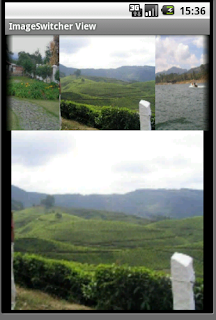
Now we will explore ImageSwitcher View. It is a view useful to switch smoothly between two images and thus provides ways of transitioning from one to another through appropriate animations.

We will implement the same concept of showing a gallery of images that scrolls at the top of the android screen landscape and upon selection of one image, it gets displayed as a larger image in the lower part through the use of an ImageSwitcher. This is what I had done earlier in the GalleryView tutorial but now instead of showing the selected picture through an ImageView, I will show it using a ImageSwitcher. Though the output may seem very similar, lot of other methods are available on the ImageSwitcher that can be used, if required.

Here is how the output would look (NOTE that I have not used the default gallery background provided by Android in the Gallery images)


So, to begin with, first we need to declare the layout xml to have a gallery and the ImageSwitcher:

<Gallery
      android:id="@+id/Gallery01"
      android:layout_width="fill_parent"
      android:layout_height="wrap_content"></Gallery>
<ImageSwitcher
      android:id="@+id/ImageSwitcher01"
      android:layout_width="fill_parent"
      android:layout_height="fill_parent">
</ImageSwitcher>

The next thing that we need to do is create a class that not only extends Activity but also implements ViewFactory. The ViewFactory is a Interface that creates views that need to be shown in the ImageSwitcher. So it has one method makeView() which we need to implement. It is here that we can set the attributes of the ImageView that would be shown within the ImageSwitcher -  like its background, it scale, its layout parameters etc. – typically those attributes that we would have otherwise statically set through a layout xml.

Here is the class declaration and the method makeView():

public class ImageSwitcherView extends Activity implements ViewFactory {

and
      @Override
      public View makeView() {
            ImageView iView = new ImageView(this);
            iView.setScaleType(ImageView.ScaleType.FIT_CENTER);
            iView.setLayoutParams(new
                        ImageSwitcher.LayoutParams(
                                    LayoutParams.FILL_PARENT,LayoutParams.FILL_PARENT));
            iView.setBackgroundColor(0xFF000000);
            return iView;
      }
This alone is the real difference from the Gallery example.

Other smaller things we need to do is get a handle to the ImageSwitcher in the onCreate() method:

            iSwitcher = (ImageSwitcher) findViewById(R.id.ImageSwitcher01);
            iSwitcher.setFactory(this);
            iSwitcher.setInAnimation(AnimationUtils.loadAnimation(this,
                        android.R.anim.fade_in));
            iSwitcher.setOutAnimation(AnimationUtils.loadAnimation(this,
                        android.R.anim.fade_out));

Here we also set the animation on how the image should fly in and fly out of the area. Then, we get a handle to the gallery and set an ImageAdapter to it. The ImageAdpater is as described in my Gallery Example. If you have not seen that, please go through that and then try this example, as I would not want to repeat myself here.
Now on the click of a gallery image, we would want to pass the selected image to the ImageSwitcher and this is what we do here:

            gallery.setOnItemClickListener(new OnItemClickListener() {

                  @Override
                  public Read More..

Tuesday, April 5, 2016

Fundamentals Android Tutorial for Beginners Part 1

This is Part 1 of a series of articles I plan to write to simplify the new paradigms introduced by the Android platform for developers.
The part 1 will only define and introduce the fundamental building blocks of Android. Later articles will provide sample code focusing on one aspect at a time, more to drive home to concept than to show any great programming skills.


From a developers perspective, the fundamental building blocks / components of Android are:
1. Activities
2. Services
3. Broadcast Receivers
4. Content Providers.


The means of communication between the above mentioned components is through
1. Intents
2. Intent Filters


The User Interface elements are by using what are called:
1. Views
2. Notifications


Now, having broadly classified the basics, I would like to give a simple definition for each of them, before we can appreciate the need for each of them.


Activity is the basic building block of every visible android application. It provides the means to render a UI. Every screen in an application is an activity by itself. Though they work together to present an application sequence, each activity is an independent entity.


Service is another building block of android applications which does not provide a UI. It is a program that can run in the background for an indefinite period.


Broadcast Receiver is yet another type of component that can receive and respond to any broadcast announcements.


Content Providers are a separate league of components that expose a specific set of data to applications.


While the understanding and knowledge of these four components is good enough to start development, the knowledge of the means of communication between the components is also essential. The platform designers have introduced a new conpect of communication through intents and intent filters.


Intents are messages that are passed between components. So, is it equivalent to parameters passed to API calls? Yes, it is close to that. However, the fundamental differences between API calls and intents way of invoking components is
1. API calls are synchronous while intent-based invocation is asynchronous (mostly)
2. API calls are bound at compile time while intent-based calls are run-time bound (mostly)


It is these two differences that take Android platform to a different league.


NOTE: Intents can be made to work exactly like API calls by using what are called explicit intents, which will be explained later. But more often than not, implicit intents are the way to go and that is what is explained here.


One component that wants to invoke another has to only express its "intent" to do a job. And any other component that exists and has claimed that it can do such a job through "intent-filters", is invoked by the android platform to accomplish the job. This means, both the components are not aware of each others existence and can still work together to give the desired result for the end-user.


This dotted line connection between components is achieved through the combination of intents, intent-filters and the android platform.


This leads to huge possibilities like:
1. Mix and match or rather plug and play of components at runtime
2. Replacing the inbuilt android applications with custom developed applications
3. Component level reuse within and across applications
4. Service orientation to the most granular level, if I may say


Now that the concept of intent has been introduced, let me get down to a more formal definition of Intent.


Intent is a bundle of information, a passive data structure that holds an abstract description of the operation to be performed. (or in the case of broadcasts, a description of an event that has happened and is being announced).


There are 2 types of intents which I intend to detail in the next part of this series. Before winding up part 1, I would finally also give you a formal definition of Intent filters.


Intent filters are the means through which a component advertizes its own capabilities to handle specific job/operations to the android platform.


Read More..

Monday, April 4, 2016

Fetching Result from a called activity Android Tutorial for Beginners – Part 5


The next logical step in learning the Android development is to look at how can you call or invoke one activity from another and get back data from the called activity back to the calling activity. For simplicity sake, let us name the first calling activity as parent activity and the invoked activity as the child activity.


For simplicity sake, I use an explicit intent for invoking the child activity. For simple invocation without expecting any data back, we use the method startActivity(). However, when we want a result to be returned by the child activity, we need to call it by the method startActivityForResult(). When the child activity finishes with the job, it should set the data in an intent and call the method setResult(resultcode, intent)to return the data through the intent.


The parent activity should have overridden the method onActivityResult(…)in order to be able to get the data and act upon it.


NOTE: for successful execution of this sequence of events, the child activity should call finish() after setResult(..)in order to give back the handle to the parent activity.


In summary, here are the methods to implement in the parent activity:
  • 1.  startActivtyForResult(..)
  • 2.  onActivityResult(…)

The child Activity should complete the work as usual and finally call:
  • 1.  setResult(…)
  • 2.  finish()

Let us delve into the example downloadable here:


The calling Activity is providing 2 buttons to view books and pens. On selecting one of them, either BooksActivityor PensActivityis called, which displays a list (using ListView) of the selected type of objects. The user can select one and the selected object is returned to the parent for display. (Note: this could be extended into a shopping cart example. I have kept it simple for the tutorial’s sake)


Since we are expecting to get back the selected object, the calling Activity’s code is like this:
     Intent bookIntent = new Intent();                bookIntent.setClass(CallingActivity.this,BooksActivity.class);
      startActivityForResult(bookIntent,BOOK_SELECT);
where BOOK_SELECT is just a constant to help us identify from which child activity the is result obtained, when there is more than 1 child activity, as in this case.


At this point the control is handed over to the BooksActivity. This displays the list of books and the user can scroll through and select a book. When the user selects a book, the selected book needs to be passed back to the CallingActivity. This is how it is done:
      Object o = this.getListAdapter().getItem(position);
      String book = o.toString();
      Intent returnIntent = new Intent();
      returnIntent.putExtra("SelectedBook",book);
      setResult(RESULT_OK,returnIntent);       
      finish();


The first 2 lines show how to get the selected book from the ListView. Then, you create a new intent object, set the selected book as an extra and pass it back through the setResult(…)method call. The result code is set to RESULT_OKsince the job has been successfully done.  After that the finish()method is called to give the control back to the parent activity.


In the parent, the method that gets the control is onActivityResult(…)
protected voidonActivityResult(int requestCode, int resultCode, Intent data)
      {
      switch(requestCode) {
      case BOOK_SELECT:
            if (resultCode == RESULT_OK) {
                String name = data.getStringExtra("SelectedBook");
                Toast.makeText(this, "You have chosen the book: " + " " + name, Toast.LENGTH_LONG).show();
                break;
            }
      ……….
      }
      }  


Here you notice that the BOOK_SELECTconstant is used to act upon the result. If the result code is RESULT_OK, we take the book selected from the “extra” of the intent that is returned from the child activity. data.getStringExtra("SelectedBook") is called to and the name returned is displayed through a Toast. 
Read More..

Saturday, April 2, 2016

Xamarin Studio for Android Programming A C Cookbook

Over 50 hands-on recipes to help you get grips with Xamarin Studio and C# programming to develop market-ready Android applications

Xamarin Studio for Android Programming: A C# Cookbook

About This Book
  • Create Android applications with C# and Xamarin
  • Reuse your Android application to develop iOS and Windows Phone applications
  • Leverage the easy-to-succeed recipes to exploit the latest Android releases and develop new applications
Who This Book Is For
If you have already developed an Android applications with Java and you now intend to use C# and Xamarin Studios capabilities, or if you have never taken the dive into mobiles, then this book is for you. It would be helpful to have some C# experience so you follow the recipes in this book, though knowledge of Android is not required.

What You Will Learn
  • Build a GUI for your Android applications
  • Explore Android activities and understand configuration changes
  • Manage multiscreens, icons, and multimedia in your applications
  • Start and bind Android services and create notifications
  • Create beautiful applications using the camera and animations
  • Effectively couple your phones hardware with applications
  • Integrate advertisements and select the right advertisement providers for your applications
In Detail
Multiplatform applications have taken the development world by storm. This has revolutionized the selection of the right tools for the efficient development and deployment of applications. Xamarin studio is emerging as the preferred choice among .NET/C# developers. It enables them to design cross-platform applications using their favorite language and IDE. Xamarin studio is supported by the Mac OS and Windows platforms, and you can develop your own applications for iOS, Windows, or Android with its help.

This book takes you through all the stages of application development, right from getting started with Xamarin and developing a GUI to putting up your application on the store. The recipes will help you in acquiring sufficient knowledge to go about creating applications.

Starting with introducing Xamarin studio, its underlying technologies, and the Android ecosystem, the book goes on to cover the graphical aspects of creating Android applications. Moving on, you will learn more about data management with Android services. This is followed by techniques on how to interact with the Android OS and the phones hardware, before finally concluding with mobile advertisements and Google Play. By the end of this book, you will have discovered all the specialties related to developing Android application with Xamarin Studio.

Style and approach
This book is organized around hands-on and practical recipes that focus on the development of Android applications using C# and Xamarin. Each recipe is easy to follow to help you progress efficiently through the book.

Read More..

Saturday, March 26, 2016

Auto Complete Text View Android Beginner Dev Tutorial

This is a very simple tutorial on using Auto Complete Text View provided by Android SDK.


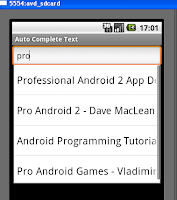
It consists of a single text box which can show suggestions based on a list of data that I provide as a source for this field. Just like Google Suggest, this also shows the nearest matches to the string that is being input by the end user.

So, here is the layout xml file:

<AutoCompleteTextView
android:id="@+id/AndroidBooks"
android:layout_width="fill_parent"
android:layout_height="wrap_content"></AutoCompleteTextView>

Nothing special. It just consists of one element.

Now in the main activity, I create an array of android books:

String[] androidBooks =
{
"Hello, Android - Ed Burnette",
"Professional Android 2 App Dev - Reto Meier",
"Unlocking Android - Frank Ableson",
"Android App Development - Blake Meike",
"Pro Android 2 - Dave MacLean",
"Beginning Android 2 - Mark Murphy",
"Android Programming Tutorials - Mark Murphy",
"Android Wireless App Development - Lauren Darcey",
"Pro Android Games - Vladimir Silva",
};

Then in the onCreate(..) method, I create an ArrayAdapter that I can pass to this AutoCompleteTextView as the data Source.

ArrayAdapter<String> adapter = new ArrayAdapter<String>(this,android.R.layout.simple_dropdown_item_1line,androidBooks);

Then, I get a handle to the AutocompleteTextView, and set the arrayAdapter to it along with the Threshold. The Threshold defines the number of charaters a user should type before the suggestions start showing up.

AutoCompleteTextView acTextView = (AutoCompleteTextView)findViewById(R.id.AndroidBooks);
acTextView.setThreshold(3);
acTextView.setAdapter(adapter);

That is it. Now execute and see it work. 
This is the way it would look:

The example code can be downloaded here.
Read More..

Tuesday, March 22, 2016

Service and Notification Android Tutorial for Beginners – Part 8


Now that we have worked with services and notifications separately, we are all ready to use the two together to make a real service that is notified to the user through a status bar update that the service is running. The status bar removes the notification as soon as the service is stopped.


In this program, I also increment a counter once the service starts to show that the service is continuously running in the background while we do other work. When we stop the service we are able to see the updated count.


Let us look at the code:


I have created a class NotifyService which extends the service class. This is the service class that will be started through the activity – ServiceLauncher


Now let us see what the service does?


It does 3 things – Toast a message that the service has started. Update the status bar with a notification. Finally start incrementing the counter. All this is done in the onCreate() method of the NotifyService Class


Toast.makeText(this,"Service created at " + time.getTime(), Toast.LENGTH_LONG).show();
showNotification();          
            incrementCounter();


Here is theshowNotification() Method:


    private void showNotification() {
 CharSequence text = getText(R.string.service_started);
 Notification notification = new Notification(R.drawable.android, text, System.currentTimeMillis());
 PendingIntent contentIntent = PendingIntent.getActivity(this, 0,
                new Intent(this, ServiceLauncher.class), 0);
notification.setLatestEventInfo(this, getText(R.string.service_label),
      text, contentIntent);
nm.notify(R.string.service_started, notification);
    }


Finally, here is the method for incrementing the counter incrementCounter():


    private void incrementCounter() {
timer.scheduleAtFixedRate(new TimerTask(){ public void run() {counter++;}}, 0, 1000L);
    }


On stopping the service, it obviously has to do the reverse actions: stop the counter, remove the status bar notification and then toast a message to the end user saying the service has stopped! So here it is:


      shutdownCounter();
      nm.cancel(R.string.service_started);
      Toast.makeText(this, "Service destroyed at " + time.getTime() + "; counter is at: " + counter, Toast.LENGTH_LONG).show();
      counter=null;


This is the code in the onDestroy()method in the NotifyServiceclass.


With this the service is ready. But we need to be able to start this service and stop it. This I have done through a ServiceLauncher class just as I had done in the previous part of this series. You can get the complete code here.

Read More..