This is again another very simple tutorial on using a Spinner View provided by Android SDK. A spinner is supposed to be a view that displays one child at a time (Whatever that means).
This example is very similar to the previous one on AutoCompleteTextView.
Jumping right into the code, here is the layout xml file:
<Spinner
android:id="@+id/Spinner01"
android:layout_width="wrap_content"
android:layout_height="wrap_content"
android:drawSelectorOnTop = "true"></Spinner>
Nothing special. It just consists of one element.
Now in the main activity, I create an array of android books:
String[] androidBooks =
{
"Hello, Android - Ed Burnette",
"Professional Android 2 App Dev - Reto Meier",
"Unlocking Android - Frank Ableson",
"Android App Development - Blake Meike",
"Pro Android 2 - Dave MacLean",
"Beginning Android 2 - Mark Murphy",
"Android Programming Tutorials - Mark Murphy",
"Android Wireless App Development - Lauren Darcey",
"Pro Android Games - Vladimir Silva",
};
Then in the onCreate() method, I create an ArrayAdapter that I can pass to this Spinner as the data Source.
ArrayAdapter<String> adapter =
new ArrayAdapter<String> (this,
android.R.layout.simple_spinner_item,androidBooks);
Then, I get a handle to the Spinner, and set the ArrayAdapter to it
sp = (Spinner)findViewById(R.id.Spinner01);
sp.setAdapter(adapter);
Now, on selecting one of the items in the spinner, I want to be able to toast a message on the book that was selected. It is done as follows:
sp.setOnItemSelectedListener(new OnItemSelectedListener() {
@Override
public void onItemSelected(AdapterView<?> arg0, View arg1, int arg2, long arg3) {
int item = sp.getSelectedItemPosition();
Toast.makeText(getBaseContext(),
"You have selected the book: " + androidBooks[item],
Toast.LENGTH_SHORT).show();
}
@Override
public void onNothingSelected(AdapterView<?> arg0) {
}
});
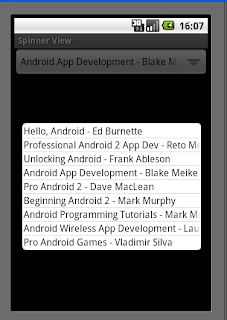 That is it. Now execute and see it work. Here is how it would look:
The example code can be downloaded here.
Read More..
This example is very similar to the previous one on AutoCompleteTextView.
Jumping right into the code, here is the layout xml file:
<Spinner
android:id="@+id/Spinner01"
android:layout_width="wrap_content"
android:layout_height="wrap_content"
android:drawSelectorOnTop = "true"></Spinner>
Nothing special. It just consists of one element.
Now in the main activity, I create an array of android books:
String[] androidBooks =
{
"Hello, Android - Ed Burnette",
"Professional Android 2 App Dev - Reto Meier",
"Unlocking Android - Frank Ableson",
"Android App Development - Blake Meike",
"Pro Android 2 - Dave MacLean",
"Beginning Android 2 - Mark Murphy",
"Android Programming Tutorials - Mark Murphy",
"Android Wireless App Development - Lauren Darcey",
"Pro Android Games - Vladimir Silva",
};
Then in the onCreate() method, I create an ArrayAdapter that I can pass to this Spinner as the data Source.
ArrayAdapter<String> adapter =
new ArrayAdapter<String> (this,
android.R.layout.simple_spinner_item,androidBooks);
Then, I get a handle to the Spinner, and set the ArrayAdapter to it
sp = (Spinner)findViewById(R.id.Spinner01);
sp.setAdapter(adapter);
Now, on selecting one of the items in the spinner, I want to be able to toast a message on the book that was selected. It is done as follows:
sp.setOnItemSelectedListener(new OnItemSelectedListener() {
@Override
public void onItemSelected(AdapterView<?> arg0, View arg1, int arg2, long arg3) {
int item = sp.getSelectedItemPosition();
Toast.makeText(getBaseContext(),
"You have selected the book: " + androidBooks[item],
Toast.LENGTH_SHORT).show();
}
@Override
public void onNothingSelected(AdapterView<?> arg0) {
}
});
The example code can be downloaded here.


