contacts,api,2,0,and,above,android,developer,tutorial
Read More..
Showing posts with label dev. Show all posts
Showing posts with label dev. Show all posts
Saturday, April 30, 2016

Sunday, April 24, 2016
Whats New in Android Studio Android Dev Summit 2015
Related:
- Steps to create AVD using new Android Emulator in Android Studio 2.0 Preview
Monday, April 18, 2016
Spinner View Android Beginner Dev Tutorial
This is again another very simple tutorial on using a Spinner View provided by Android SDK. A spinner is supposed to be a view that displays one child at a time (Whatever that means).
This example is very similar to the previous one on AutoCompleteTextView.
Jumping right into the code, here is the layout xml file:
<Spinner
android:id="@+id/Spinner01"
android:layout_width="wrap_content"
android:layout_height="wrap_content"
android:drawSelectorOnTop = "true"></Spinner>
Nothing special. It just consists of one element.
Now in the main activity, I create an array of android books:
String[] androidBooks =
{
"Hello, Android - Ed Burnette",
"Professional Android 2 App Dev - Reto Meier",
"Unlocking Android - Frank Ableson",
"Android App Development - Blake Meike",
"Pro Android 2 - Dave MacLean",
"Beginning Android 2 - Mark Murphy",
"Android Programming Tutorials - Mark Murphy",
"Android Wireless App Development - Lauren Darcey",
"Pro Android Games - Vladimir Silva",
};
Then in the onCreate() method, I create an ArrayAdapter that I can pass to this Spinner as the data Source.
ArrayAdapter<String> adapter =
new ArrayAdapter<String> (this,
android.R.layout.simple_spinner_item,androidBooks);
Then, I get a handle to the Spinner, and set the ArrayAdapter to it
sp = (Spinner)findViewById(R.id.Spinner01);
sp.setAdapter(adapter);
Now, on selecting one of the items in the spinner, I want to be able to toast a message on the book that was selected. It is done as follows:
sp.setOnItemSelectedListener(new OnItemSelectedListener() {
@Override
public void onItemSelected(AdapterView<?> arg0, View arg1, int arg2, long arg3) {
int item = sp.getSelectedItemPosition();
Toast.makeText(getBaseContext(),
"You have selected the book: " + androidBooks[item],
Toast.LENGTH_SHORT).show();
}
@Override
public void onNothingSelected(AdapterView<?> arg0) {
}
});
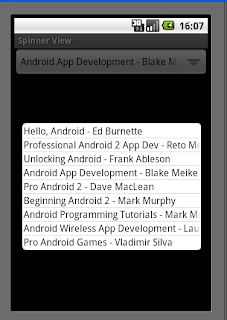 That is it. Now execute and see it work. Here is how it would look:
The example code can be downloaded here.
Read More..
This example is very similar to the previous one on AutoCompleteTextView.
Jumping right into the code, here is the layout xml file:
<Spinner
android:id="@+id/Spinner01"
android:layout_width="wrap_content"
android:layout_height="wrap_content"
android:drawSelectorOnTop = "true"></Spinner>
Nothing special. It just consists of one element.
Now in the main activity, I create an array of android books:
String[] androidBooks =
{
"Hello, Android - Ed Burnette",
"Professional Android 2 App Dev - Reto Meier",
"Unlocking Android - Frank Ableson",
"Android App Development - Blake Meike",
"Pro Android 2 - Dave MacLean",
"Beginning Android 2 - Mark Murphy",
"Android Programming Tutorials - Mark Murphy",
"Android Wireless App Development - Lauren Darcey",
"Pro Android Games - Vladimir Silva",
};
Then in the onCreate() method, I create an ArrayAdapter that I can pass to this Spinner as the data Source.
ArrayAdapter<String> adapter =
new ArrayAdapter<String> (this,
android.R.layout.simple_spinner_item,androidBooks);
Then, I get a handle to the Spinner, and set the ArrayAdapter to it
sp = (Spinner)findViewById(R.id.Spinner01);
sp.setAdapter(adapter);
Now, on selecting one of the items in the spinner, I want to be able to toast a message on the book that was selected. It is done as follows:
sp.setOnItemSelectedListener(new OnItemSelectedListener() {
@Override
public void onItemSelected(AdapterView<?> arg0, View arg1, int arg2, long arg3) {
int item = sp.getSelectedItemPosition();
Toast.makeText(getBaseContext(),
"You have selected the book: " + androidBooks[item],
Toast.LENGTH_SHORT).show();
}
@Override
public void onNothingSelected(AdapterView<?> arg0) {
}
});
The example code can be downloaded here.
Thursday, April 14, 2016
Game Dev Story Full Paid for Android

Manage your own game company and try to create a million-selling game in this unique simulation.
Features the ability to develop your company's own game console, plus a system for changing your staff members' professions.
Your staff members can have a variety of game-related professions, from programmer to sound engineer.
Work hard and you may reach the top of the video game industry!
Cracked by: TOPRAK
Saturday, March 26, 2016
Auto Complete Text View Android Beginner Dev Tutorial
This is a very simple tutorial on using Auto Complete Text View provided by Android SDK.
It consists of a single text box which can show suggestions based on a list of data that I provide as a source for this field. Just like Google Suggest, this also shows the nearest matches to the string that is being input by the end user.
So, here is the layout xml file:
<AutoCompleteTextView
android:id="@+id/AndroidBooks"
android:layout_width="fill_parent"
android:layout_height="wrap_content"></AutoCompleteTextView>
Nothing special. It just consists of one element.
Now in the main activity, I create an array of android books:
String[] androidBooks =
{
"Hello, Android - Ed Burnette",
"Professional Android 2 App Dev - Reto Meier",
"Unlocking Android - Frank Ableson",
"Android App Development - Blake Meike",
"Pro Android 2 - Dave MacLean",
"Beginning Android 2 - Mark Murphy",
"Android Programming Tutorials - Mark Murphy",
"Android Wireless App Development - Lauren Darcey",
"Pro Android Games - Vladimir Silva",
};
Then in the onCreate(..) method, I create an ArrayAdapter that I can pass to this AutoCompleteTextView as the data Source.
ArrayAdapter<String> adapter = new ArrayAdapter<String>(this,android.R.layout.simple_dropdown_item_1line,androidBooks);
Then, I get a handle to the AutocompleteTextView, and set the arrayAdapter to it along with the Threshold. The Threshold defines the number of charaters a user should type before the suggestions start showing up.
AutoCompleteTextView acTextView = (AutoCompleteTextView)findViewById(R.id.AndroidBooks);
acTextView.setThreshold(3);
acTextView.setAdapter(adapter);
That is it. Now execute and see it work.
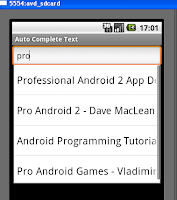 This is the way it would look:
The example code can be downloaded here.
Read More..
It consists of a single text box which can show suggestions based on a list of data that I provide as a source for this field. Just like Google Suggest, this also shows the nearest matches to the string that is being input by the end user.
So, here is the layout xml file:
<AutoCompleteTextView
android:id="@+id/AndroidBooks"
android:layout_width="fill_parent"
android:layout_height="wrap_content"></AutoCompleteTextView>
Nothing special. It just consists of one element.
Now in the main activity, I create an array of android books:
String[] androidBooks =
{
"Hello, Android - Ed Burnette",
"Professional Android 2 App Dev - Reto Meier",
"Unlocking Android - Frank Ableson",
"Android App Development - Blake Meike",
"Pro Android 2 - Dave MacLean",
"Beginning Android 2 - Mark Murphy",
"Android Programming Tutorials - Mark Murphy",
"Android Wireless App Development - Lauren Darcey",
"Pro Android Games - Vladimir Silva",
};
Then in the onCreate(..) method, I create an ArrayAdapter that I can pass to this AutoCompleteTextView as the data Source.
ArrayAdapter<String> adapter = new ArrayAdapter<String>(this,android.R.layout.simple_dropdown_item_1line,androidBooks);
Then, I get a handle to the AutocompleteTextView, and set the arrayAdapter to it along with the Threshold. The Threshold defines the number of charaters a user should type before the suggestions start showing up.
AutoCompleteTextView acTextView = (AutoCompleteTextView)findViewById(R.id.AndroidBooks);
acTextView.setThreshold(3);
acTextView.setAdapter(adapter);
That is it. Now execute and see it work.
The example code can be downloaded here.
Thursday, March 10, 2016
Context Menu Android Developer Tutorial
This is a follow up to the Options Menu Tutorial shared earlier.
To recap, the Context Menu is a floating list of menu items that appears when a user touches and holds a particular item displayed in the view, which has a menu associated with it.
Going straight to the example, first I create a ListViewwith names of pens displayed. When one presses and holds one of the names for a long time, the context menu appears as shown here:

And when you click on any of the context menu shown above, the screen that appears is:
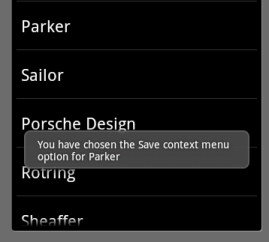
Let’s go to the code.
First, the mundane step of creating a Listview(you can see the ListView tutorial for more explanation on this).
I create a class ShowContextMenuextending the ListActivity. In its OnCreate(…) method, I associate the Listview array with the ListAdapater as shown here:
public class ShowContextMenu extends ListActivity {
/** Called when the activity is first created. */
@Override
public voidonCreate(Bundle savedInstanceState) {
super.onCreate(savedInstanceState);
setListAdapter(new ArrayAdapter<String>(this,
android.R.layout.simple_list_item_1, getResources().getStringArray(R.array.names)));
…
}
Note that instead of hard-coding the list items as string array within the class, I have followed the best practice of externalizing the strings into a strings.xml resource class. Hence I use getResources().getStringArray(R.array.names) to retrieve the array of pen names that I want to display in the List. The strings.xml file in the value folder has this entry:
<string-array name="names">
<item>MONT Blanc</item>
<item>Gucci</item>
<item>Parker</item>
<item>Sailor</item>
<item>Porsche Design</item>
<item>Rotring</item>
<item>Sheaffer</item>
<item>Waterman</item>
</string-array>
Once this Listview has been created, now we want to associate a ContextMenu with each of the rows in the Listview Item. i.e. is a user were to long-press one of the items, a menu should appear. For this we add the following line as well in the onCreate(..) method.
registerForContextMenu(getListView());
But how do we create the ContextMenu? Whenever the long-press happens, the onCreateContextMenu(…) method is invoked. So, we need to override this method as shown below:
public voidonCreateContextMenu(ContextMenu menu, View v, ContextMenuInfo menuInfo) {
super.onCreateContextMenu(menu, v, menuInfo);
MenuInflater inflater = getMenuInflater();
inflater.inflate(R.menu.context_menu, menu);
}
Here again, just as in Options Menu tutorial, I use a MenuInflater to create the context menu rather than do it programmatically. This is certainly a best practice of keeping the concerns separated. The View and the programming logic are kept separate as meant to be in Android Programming. The context menu consists of 4 items – Edit, Save, Delete, View. So, here is how it is defined in the context_menu.xml in the res/menu folder:
<menu
>="http://schemas.android.com/apk/res/android">
<item android:id="@+id/edit"
android:title="@string/edit" />
<item android:id="@+id/save"
android:title="@string/save" />
<item android:id="@+id/delete"
android:title="@string/delete" />
<item android:id="@+id/view"
android:title="@string/view" />
</menu>
I have an id that is associated with each of the menu items that uniquely identifies the menu item selected. And I have a String associated with it which is what is displayed on the Menu.
Now that the context menu is created, how to handle when the menu item is clicked? For this we need to override the onContextItemSelected(…) method as shown below;
Friday, February 19, 2016
Android example to list NetworkInterface

MainActivity.java
package com.blogspot.android_er.androidscannetworkinterface;

import android.os.AsyncTask;
import android.os.Bundle;
import android.support.v7.app.AppCompatActivity;
import android.view.View;
import android.widget.ArrayAdapter;
import android.widget.Button;
import android.widget.ListView;
import android.widget.Toast;

import java.net.InetAddress;
import java.net.NetworkInterface;
import java.net.SocketException;
import java.util.ArrayList;
import java.util.Enumeration;

public class MainActivity extends AppCompatActivity {

 private Button btnScan;
 private ListView listViewNI;

 ArrayList<String> niList;
 ArrayAdapter<String> adapter;

 @Override
 protected void onCreate(Bundle savedInstanceState) {
 super.onCreate(savedInstanceState);
 setContentView(R.layout.activity_main);

 btnScan = (Button)findViewById(R.id.scan);
 listViewNI = (ListView)findViewById(R.id.listviewni);


 niList = new ArrayList();
 adapter = new ArrayAdapter<String>(this,
 android.R.layout.simple_list_item_1, android.R.id.text1, niList);
 listViewNI.setAdapter(adapter);

 btnScan.setOnClickListener(new View.OnClickListener() {
 @Override
 public void onClick(View v) {
 new ScanNITask().execute();
 }
 });
 }


 private class ScanNITask extends AsyncTask<Void, String, Void> {

 @Override
 protected void onPreExecute() {
 niList.clear();
 adapter.notifyDataSetInvalidated();
 }

 @Override
 protected Void doInBackground(Void... params) {

 try {
 Enumeration<NetworkInterface> networkInterfaces = NetworkInterface.getNetworkInterfaces();
 while (networkInterfaces.hasMoreElements()) {

 NetworkInterface thisInterface = networkInterfaces.nextElement();
 Enumeration<InetAddress> inetAddresses = thisInterface.getInetAddresses();
 if (inetAddresses.hasMoreElements()) {
 String niInfo = thisInterface.getDisplayName() + " ";

 while (inetAddresses.hasMoreElements()) {
 InetAddress thisAddress = inetAddresses.nextElement();
 niInfo += "--- ";
 niInfo += "Address: " + thisAddress.getAddress() + " ";
 niInfo += "CanonicalHostName: " + thisAddress.getCanonicalHostName() + " ";
 niInfo += "HostAddress: " + thisAddress.getHostAddress() + " ";
 niInfo += "HostName: " + thisAddress.getHostName() + " ";
 }

 publishProgress(niInfo);
 }


 }
 } catch (SocketException e) {
 e.printStackTrace();
 }

 return null;
 }

 @Override
 protected void onProgressUpdate(String... values) {
 niList.add(values[0]);
 adapter.notifyDataSetInvalidated();

 }

 @Override
 protected void onPostExecute(Void aVoid) {
 Toast.makeText(MainActivity.this, "Done", Toast.LENGTH_LONG).show();
 }
 }
}
activity_main.xml
<?xml version="1.0" encoding="utf-8"?>
<LinearLayout


 android_layout_width="match_parent"
 android_layout_height="match_parent"
 android_padding="16dp"
 android_orientation="vertical"
 tools_context=".MainActivity">

 <TextView
 android_layout_width="wrap_content"
 android_layout_height="wrap_content"
 android_layout_gravity="center_horizontal"
 android_autoLink="web"
 android_text="http://android-er.blogspot.com/"
 android_textStyle="bold" />

 <Button
 android_id="@+id/scan"
 android_layout_width="match_parent"
 android_layout_height="wrap_content"
 android_text="Scan"/>
 <ListView
 android_id="@+id/listviewni"
 android_layout_width="match_parent"
 android_layout_height="wrap_content"/>
</LinearLayout>
Permission of "android.permission.INTERNET" is needed in AndroidManifest.xml

