Android Developing: Remove Auto focus from Edit Text: "When start Android application, it always auto focus EditText box. Here we give explain how to remove auto focus from EditText. Add your..."
Read More..
Showing posts with label from. Show all posts
Showing posts with label from. Show all posts
Tuesday, May 10, 2016

Sunday, May 1, 2016
Sunday, April 24, 2016
Remote Service Android Developer Tutorial Part 9
Services typically are required to run for a long time and hence should run in their own thread. Such services can be invoked by any number of clients who want to connect to the service, invoke a few methods on the service and finally release the service, probably to serve more clients or close down.
Here, I would like to introduce you to the concept of connecting to a remote service and the kind of support provided by the android platform for the same.
We have earlier seen how local services can be created and used. The difference between the two mainly is that the local service runs in the same process as the application that started it and hence the life of the local service is dependent on the life of the said application while remote service can run in its own process. This causes a challenge of inter-process communication. If one process wants to communicate with another process, the object that is passed between the two needs to be marshaled.
For this purpose, Android provides the AIDL (Android Interface Definition Language) tool that handles the marshaling as well as the communication.
The service has to declare a service interface in an aidl file and the AIDL tool will automatically create a java interface corresponding to the aidl file. The AIDL tool also generates a stub class that provides an abstract implementation of the service interface methods. The actual service class will have to extend this stub class to provide the real implementation of the methods exposed through the interface.
The service clients will have to invoke the onBind() method on the service to be able to connect to the service. The onBind() method returns an object of the stub class to the client. Here are the code related code snippets:
The AIDL file:
package com.collabera.labs.sai;
interface IMyRemoteService {
int getCounter();
}
Once you write this AIDL file (.aidl) in eclipse, it will automatically generate the Remote interface corresponding to this file. The remote interface will also provide a stub inner class which has to have an implementation provided by the RemoteService class. The stub class implementation within the service class is as given here:
private IMyRemoteService.Stub myRemoteServiceStub = newIMyRemoteService.Stub() {
public int getCounter() throws RemoteException {
return counter;
}
};
The onBind() method in the service class:
public IBinder onBind(Intent arg0) {
Log.d(getClass().getSimpleName(), "onBind()");
return myRemoteServiceStub;
}
Now, let us quickly look at the meat of the service class before we move on to how the client connects to this service class. My RemoteService class is just incrementing a counter in a separate thread. This thread is created in the onStart()method as this gets certainly called whether the service is connected to by a call to startService(intent).Please read the lifecycle of a service if this needs more clarity. Here are the over-ridden onCreate(), onStart()and onDestroy()methods. Note that the resources are all released in the onDestroy()method.
public void onCreate() {
super.onCreate();
Log.d(getClass().getSimpleName(),"onCreate()");
}
public void onStart(Intent intent, int startId) {
super.onStart(intent, startId);
serviceHandler = new Handler();
serviceHandler.postDelayed(myTask, 1000L);
Log.d(getClass().getSimpleName(), "onStart()");
}
public void onDestroy() {
super.onDestroy();
serviceHandler.removeCallbacks(myTask);
serviceHandler = null;
Log.d(getClass().getSimpleName(),"onDestroy()");
}
A little explanation: In the onStart() method, I created a new Handler object that will spawn out a new task that implements the Runnableinterface. This thread does the job of incrementing the counter. Here is the code for the Task class – an inner class of the RemoteServiceclass.
class Task implements Runnable {
public void run() {
++counter;
serviceHandler.postDelayed(this,1000L);
Log.i(getClass().getSimpleName(), "Incrementing counter in the run method");
}
}
An object of this Taskclass is passed to the serviceHandler object as a message that needs to be executed after 1 second. The Taskclass implements the run() method in which we repeatedly post the same message to the serviceHandler. Thus, this becomes a repeated task till all the messages in the serviceHandlerqueue are deleted by calling the removeCallbacks()method on the serviceHandler in the destroy()method of the RemoteService class.
Note that the onDestroy()method thus stops this thread and set the service
Read More..
Tuesday, April 12, 2016
Free book Linux From Scratch LFS

You may download the stable book in various formats from the stable book directory.
Monday, April 4, 2016
Fetching Result from a called activity Android Tutorial for Beginners – Part 5
The next logical step in learning the Android development is to look at how can you call or invoke one activity from another and get back data from the called activity back to the calling activity. For simplicity sake, let us name the first calling activity as parent activity and the invoked activity as the child activity.
For simplicity sake, I use an explicit intent for invoking the child activity. For simple invocation without expecting any data back, we use the method startActivity(). However, when we want a result to be returned by the child activity, we need to call it by the method startActivityForResult(). When the child activity finishes with the job, it should set the data in an intent and call the method setResult(resultcode, intent)to return the data through the intent.
The parent activity should have overridden the method onActivityResult(…)in order to be able to get the data and act upon it.
NOTE: for successful execution of this sequence of events, the child activity should call finish() after setResult(..)in order to give back the handle to the parent activity.
In summary, here are the methods to implement in the parent activity:
- 1. startActivtyForResult(..)
- 2. onActivityResult(…)
The child Activity should complete the work as usual and finally call:
- 1. setResult(…)
- 2. finish()
Let us delve into the example downloadable here:
The calling Activity is providing 2 buttons to view books and pens. On selecting one of them, either BooksActivityor PensActivityis called, which displays a list (using ListView) of the selected type of objects. The user can select one and the selected object is returned to the parent for display. (Note: this could be extended into a shopping cart example. I have kept it simple for the tutorial’s sake)
Since we are expecting to get back the selected object, the calling Activity’s code is like this:
Intent bookIntent = new Intent(); bookIntent.setClass(CallingActivity.this,BooksActivity.class);
startActivityForResult(bookIntent,BOOK_SELECT);
where BOOK_SELECT is just a constant to help us identify from which child activity the is result obtained, when there is more than 1 child activity, as in this case.
At this point the control is handed over to the BooksActivity. This displays the list of books and the user can scroll through and select a book. When the user selects a book, the selected book needs to be passed back to the CallingActivity. This is how it is done:
Object o = this.getListAdapter().getItem(position);
String book = o.toString();
Intent returnIntent = new Intent();
returnIntent.putExtra("SelectedBook",book);
setResult(RESULT_OK,returnIntent);
finish();
The first 2 lines show how to get the selected book from the ListView. Then, you create a new intent object, set the selected book as an extra and pass it back through the setResult(…)method call. The result code is set to RESULT_OKsince the job has been successfully done. After that the finish()method is called to give the control back to the parent activity.
In the parent, the method that gets the control is onActivityResult(…)
protected voidonActivityResult(int requestCode, int resultCode, Intent data)
{
switch(requestCode) {
case BOOK_SELECT:
if (resultCode == RESULT_OK) {
String name = data.getStringExtra("SelectedBook");
Toast.makeText(this, "You have chosen the book: " + " " + name, Toast.LENGTH_LONG).show();
break;
}
……….
}
}
Here you notice that the BOOK_SELECTconstant is used to act upon the result. If the result code is RESULT_OK, we take the book selected from the “extra” of the intent that is returned from the child activity. data.getStringExtra("SelectedBook") is called to and the name returned is displayed through a Toast.
Saturday, March 26, 2016

Sunday, March 20, 2016

Monday, March 7, 2016
Friday, February 26, 2016
Android UI – Inflate from XML Dynamic UI Creation
We have seen that we can declare User Interface in Android through XML or we can even create the UI Programmatically. Now, we will see how we can mix the two and use it for building dynamic User Interfaces. One example of such a case would be when on a particular action of the user on one of the UI elements, you need more UI elements to appear on the same screen. How do we achieve this?
You can do it in two ways:
1. The dynamic part of the UI can be created programmatically. However we saw in my earlier tutorial that it is not a very good way to mix UI and code. So, we can
2. Define the dynamic UI too as an XML and use XML inflation to include it into the existing UI.
We will see how to do the 2ndway, which probably is a good practice too.
As always, again a very simple example. Assume I have a very simple linear layout. In that I want to include a button. I can do it as part of the mail XML itself. However, assume that this button is supposed to be reused in many activities and hence I have defined it as a separate XML. How do I include it into the main XML?
So, here is the main.xml
<?xml version="1.0"encoding="utf-8"?>
<LinearLayout >="http://schemas.android.com/apk/res/android"
android:orientation="vertical"
android:layout_width="fill_parent"
android:layout_height="fill_parent"
android:id="@+id/layout1"
>
</LinearLayout>
Here is the buttons.xml that is also created in the res/layout folder:
<?xml version="1.0"encoding="utf-8"?>
<Button >="http://schemas.android.com/apk/res/android"
android:id="@+id/button_small_left"
style="?android:attr/buttonStyleSmall"
android:text="Press to close"
android:layout_width="wrap_content"
android:layout_height="wrap_content"/>
And here is the Activity’s onCreate(…) method of the InflateView class:
public voidonCreate(Bundle savedInstanceState) {
super.onCreate(savedInstanceState);
setContentView(R.layout.main);
final LayoutInflater inflater = (LayoutInflater)getSystemService(Context.LAYOUT_INFLATER_SERVICE);
Button b = (Button)inflater.inflate(R.layout.buttons,
null);
lLayout = (LinearLayout)findViewById(R.id.layout1);
lLayout.addView(b);
First 3 lines must be familiar. In the 4thline, I am getting a handle to the LayoutInflater through the getSystemService(…) method. This inflater has a method inflate to which I pass the buttons.xml by passing the parameter R.layout.buttons. Then, I try to append this button to the Linear Layout that already exists and is set as the view in line 2 setContentView(R.layout.main). How to append? I get a handle to the LinearLayoutlLayout and add the new button to it in the last line!
That simple to inflate an XML and append it to an existing view!
However, I have gone ahead and added another bit to this program as shown below:
b.setOnClickListener(new OnClickListener() {
public void onClick(View v) {
//restrict to adding only 1 textview child element
if (lLayout.getChildAt(2) == null)
{
TextView tv = (TextView)inflater.inflate(R.layout.text, null);
lLayout.addView(tv);
}
}
});
On the click of this dynamically added button, I am showing how we can add more to the UI dynamically through inflation. Assume, on the click of the button, you want to show some new text. This TextView is defined in another XML called text.xml which is also in the res/layout folder.
So, I am inflating from this XML and appending it to the LinearLayout view. So, a lot can be achieved for dynamic UI through inflation.
You can download the complete sample code here.
Wednesday, February 24, 2016
Tales from the Borderlands 1 46 Chapter Unlocked Android Obb Download
Tales from the Borderlands 1.46 Apk Full Data Files Chapters Unlocked Download

Note: Download All The Parts Provided and extract any of them, it will automatically extract all the parts. Install .apk File And place data folder in SDcard/Android/obb/ and Start playing. Paste Chapter Files in SDcard/Android/data.
DOWNLOAD LINKS
Download From PlayStore
Click Here For APK+Data Files Download
Monday, February 22, 2016
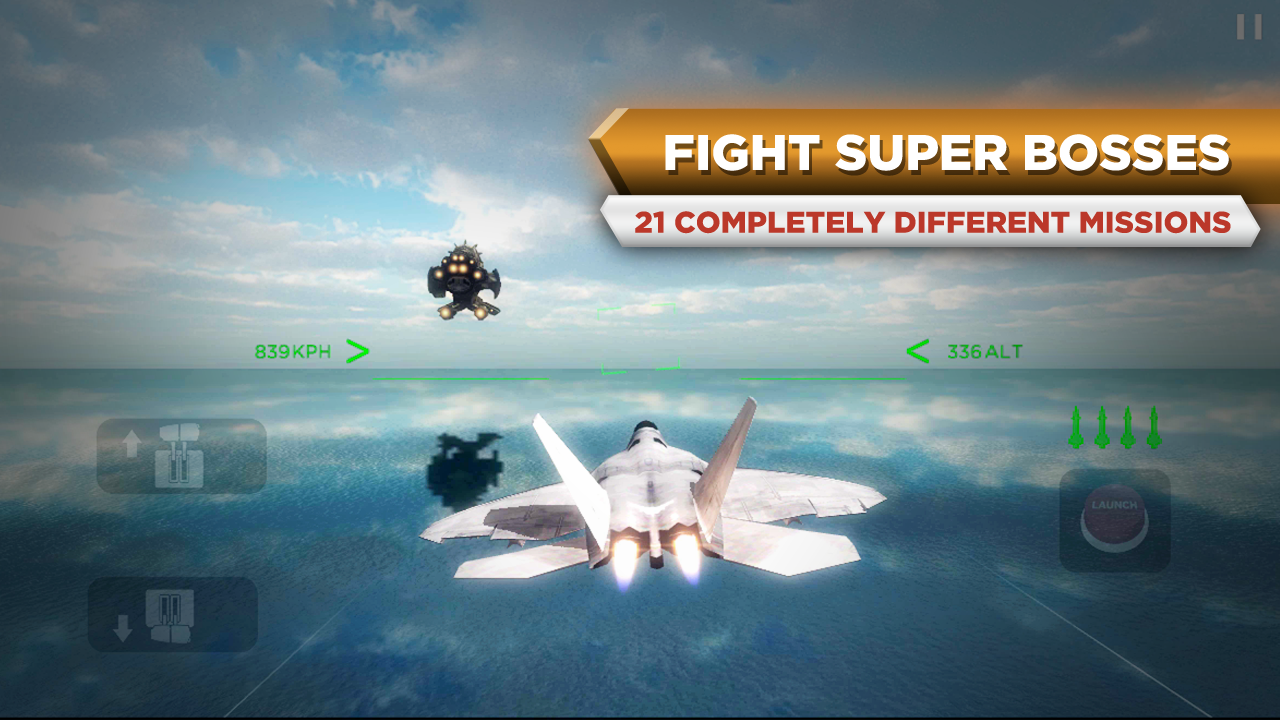
SIM EXTREME FLIGHT Unlimited Money Android Game Moded

Salam Blogger :)
Duh maaf ya udh jarang update soalnya lagi sibuk ngurusin dunia real + tugas2 kuliah nih gan.. Oke Utk kali ini mau share game Simulasi, yaitu SIM EXTREME FLIGHT. Karena sudah di mod kalian bisa langsung menggunakan pesawat yg bagus" nah asyikan hehe.. tinggal bersenang2 dah, game itu kan bukannya buat bersenang2 betu?. Oke langsung saja gan :
Details Game:
Name : SIM EXTREME FLIGHTGenre : Simulasi
Platform : Android
Requires : Android 4.2 and up
Modification on Game:
- Unlimited Money
Review Modif:

Screenshoot:

Tutorial Instal :
1. Download game.
2. Pindahkan Game ke Androidmu.
3. Uniinstal Version originalnya, jika ada.
4. Instal MOD apk & Play
5. Enjoyyy
|Download|
SIM EXTREME FLIGHT - Unlimited Money[Android Game : Moded]
|Download Original game|
On Playstore
#Salam Blogger
#Semoga bermanfaat :)
#Ask? comment :)
Saturday, February 20, 2016
Android Code Coverage Unit Testing
This is a very small post for all those who have been strugling to generate the Android Test Coverage Using the ant scripts give by android sdk itself.
I am assuming that you have created one project containing the actual source code to be tested - assume it is called "MyProject" and you have created another test project that tests MyProject, that is named MyProjectTest.
Then, you have written jUnit tests using the inherent testing support framework with android. Now, you have run your unit tests and they run successfully in ecplise. You then, what to check on the code coverage of these unit tests. Here are the steps for the same:
This should generate a html report of the coverage under MyProjectTest/coverage
Troubleshooting:
Read More..
I am assuming that you have created one project containing the actual source code to be tested - assume it is called "MyProject" and you have created another test project that tests MyProject, that is named MyProjectTest.
Then, you have written jUnit tests using the inherent testing support framework with android. Now, you have run your unit tests and they run successfully in ecplise. You then, what to check on the code coverage of these unit tests. Here are the steps for the same:
- At the command prompt, change directory to the MyProject folder
- Rename the existing build.xml to build_orig.xml
- Run this command:
- Then change directory to cd ..MyProjectTest
- Rename the existing build.xml to build_orig.xml
- Run this command:
- Then, run the command -
This should generate a html report of the coverage under MyProjectTest/coverage
Troubleshooting:
- Incase you get an error "remote object coverage.ec does not exist" then start adb shell in another command prompt - in order to give write permissions to the sdcard for writing the coverage.ec file
- Then, run the following command at the shell
- Then you should be able to generate the report.
Monday, February 8, 2016
Gallery View Android Developer Tutorial
Continuing on the Views, I have taken up the Gallery View that helps in showing Images as in a gallery. As per the android documentation, this is the definition: “A Gallery is a View commonly used to display items in a horizontally scrolling list that locks the current selection at the center.”
For this the layout xml in this case, the main.xml will have a ‘Gallery’ element as shown below:
<Gallery
android_id="@+id/Gallery01"
android_layout_width="fill_parent"
android_layout_height="wrap_content"></Gallery>
<ImageView android_id="@+id/ImageView01"
android_layout_width="wrap_content"
android_layout_height="wrap_content"></ImageView>

Now, I create a GalleryView Activity. To view a set of images of Antartica, I have created small sized images of antartica and stored them in the res/drawable-ldpi folder starting form antartica1.png to antartica10.png.
I create an array of these resources/images in my activity with the following code:
Integer[] pics = {
R.drawable.antartica1,
R.drawable.antartica2,
R.drawable.antartica3,
R.drawable.antartica4,
R.drawable.antartica5,
R.drawable.antartica6,
R.drawable.antartica7,
R.drawable.antartica8,
R.drawable.antartica9,
R.drawable.antartica10
};
As we have seen with all the other views so far, we need to have an adapter that associates the view with the data. Here the view is Gallery and the data is the above mentioned 10 images. An Adapter plays the role of linking the two as shown below:
Gallery ga = (Gallery)findViewById(R.id.Gallery01);
ga.setAdapter(new ImageAdapter(this));
However, we do not have a readymade implementation of the ImageAdapter. We have to create our own implementation of the same by extending the BaseAdapter class. This is the core of the code in this example. The moment we extend the BaseAdapter, we have to override 4 methods. They are getCount(), getItem(), getItemId() and getView().
Before we go to each of them, let us see the constructor of the ImageAdpater:
public class ImageAdapter extends BaseAdapter {
private Context ctx;
int imageBackground;
public ImageAdapter(Context c) {
ctx = c;
TypedArray ta = obtainStyledAttributes(R.styleable.Gallery1);
imageBackground = ta.getResourceId(R.styleable.Gallery1_android_galleryItemBackground, 1);
ta.recycle();
}
…
}
It takes the context that is passed to the constructor. We need to examine this code a little. First, we can define our own resources or attributes in an XML file. Those attributes can be retrieved through the method obtainStyledAttributes. This is a method on the Context object. The returned value needs to be stored in a TypedArray object. A TypedArray is nothing but a container for an array of values that are returned by obtainStyledAttributes.
So, in my example, I have created an xml file by name attributes.xml in the res/values folder with the following content:
<resources>
<declare-styleable name="Gallery1">
<attr name="android:galleryItemBackground"/>
</declare-styleable>
</resources>
Here Gallery1 is a custom name for a style defined by us. In this style, we are trying to say what should be the background of our images. For that we are using a pre-defined backgournd in R.attr class as galleryItemBackground.
So, this is accessed in the ImageAdapter contructor through the line
ta.getResourceId(R.styleable.Gallery1_android_galleryItemBackground, 1);
ta.recycle();
The number 1 is to say that it is the first element in the attributes.xml file under the styelable Gallery1.
The rest of the over ridden methods are simple:
@Override
public int getCount() {
return pics.length;
}
@Override
public Object getItem(int arg0) {
return arg0;
}
@Override
public long getItemId(int arg0) {
return arg0;
}
@Override
public View getView(int arg0, View arg1, ViewGroup arg2) {
ImageView iv = new ImageView(ctx);
iv.setImageResource(pics[arg0]);
iv.setScaleType(ImageView.ScaleType.FIT_XY);
iv.setLayoutParams(new Gallery.LayoutParams(150,120));
iv.setBackgroundResource(imageBackground);
return iv;
}
The getView actually returns a View object when called. Here I have overridden it to return a ImageView object with the selected image inside it alosn with some scale, layout paramaters and the image background set.
Finally in the onCreate() method of the activity I have captured the onClick event on a Gallery item and within that I have toasted a message as well as displayed the image in a bigger manner below the gallery:
ga.setOnItemClickListener(new OnItemClickListener() {
@Override
public void onItemClick(AdapterView<?> arg0, View arg1, int arg2, long arg3) {
Toast.makeText(getBaseContext(), "You have selected picture " + (arg2+1) + " of Antartica",
Toast.LENGTH_SHORT).show();
imageView.setImageResource(pics[arg2]);
}
});
That is it. You may download the complete code from here.
Read More..
For this the layout xml in this case, the main.xml will have a ‘Gallery’ element as shown below:
<Gallery
android_id="@+id/Gallery01"
android_layout_width="fill_parent"
android_layout_height="wrap_content"></Gallery>
<ImageView android_id="@+id/ImageView01"
android_layout_width="wrap_content"
android_layout_height="wrap_content"></ImageView>
It also has an ImageView element which is used to show the selected Image in a larger ImageView. Here is how it would look when executed.
I create an array of these resources/images in my activity with the following code:
Integer[] pics = {
R.drawable.antartica1,
R.drawable.antartica2,
R.drawable.antartica3,
R.drawable.antartica4,
R.drawable.antartica5,
R.drawable.antartica6,
R.drawable.antartica7,
R.drawable.antartica8,
R.drawable.antartica9,
R.drawable.antartica10
};
As we have seen with all the other views so far, we need to have an adapter that associates the view with the data. Here the view is Gallery and the data is the above mentioned 10 images. An Adapter plays the role of linking the two as shown below:
Gallery ga = (Gallery)findViewById(R.id.Gallery01);
ga.setAdapter(new ImageAdapter(this));
However, we do not have a readymade implementation of the ImageAdapter. We have to create our own implementation of the same by extending the BaseAdapter class. This is the core of the code in this example. The moment we extend the BaseAdapter, we have to override 4 methods. They are getCount(), getItem(), getItemId() and getView().
Before we go to each of them, let us see the constructor of the ImageAdpater:
public class ImageAdapter extends BaseAdapter {
private Context ctx;
int imageBackground;
public ImageAdapter(Context c) {
ctx = c;
TypedArray ta = obtainStyledAttributes(R.styleable.Gallery1);
imageBackground = ta.getResourceId(R.styleable.Gallery1_android_galleryItemBackground, 1);
ta.recycle();
}
…
}
It takes the context that is passed to the constructor. We need to examine this code a little. First, we can define our own resources or attributes in an XML file. Those attributes can be retrieved through the method obtainStyledAttributes. This is a method on the Context object. The returned value needs to be stored in a TypedArray object. A TypedArray is nothing but a container for an array of values that are returned by obtainStyledAttributes.
So, in my example, I have created an xml file by name attributes.xml in the res/values folder with the following content:
<resources>
<declare-styleable name="Gallery1">
<attr name="android:galleryItemBackground"/>
</declare-styleable>
</resources>
Here Gallery1 is a custom name for a style defined by us. In this style, we are trying to say what should be the background of our images. For that we are using a pre-defined backgournd in R.attr class as galleryItemBackground.
So, this is accessed in the ImageAdapter contructor through the line
ta.getResourceId(R.styleable.Gallery1_android_galleryItemBackground, 1);
ta.recycle();
The number 1 is to say that it is the first element in the attributes.xml file under the styelable Gallery1.
The rest of the over ridden methods are simple:
@Override
public int getCount() {
return pics.length;
}
@Override
public Object getItem(int arg0) {
return arg0;
}
@Override
public long getItemId(int arg0) {
return arg0;
}
@Override
public View getView(int arg0, View arg1, ViewGroup arg2) {
ImageView iv = new ImageView(ctx);
iv.setImageResource(pics[arg0]);
iv.setScaleType(ImageView.ScaleType.FIT_XY);
iv.setLayoutParams(new Gallery.LayoutParams(150,120));
iv.setBackgroundResource(imageBackground);
return iv;
}
The getView actually returns a View object when called. Here I have overridden it to return a ImageView object with the selected image inside it alosn with some scale, layout paramaters and the image background set.
Finally in the onCreate() method of the activity I have captured the onClick event on a Gallery item and within that I have toasted a message as well as displayed the image in a bigger manner below the gallery:
ga.setOnItemClickListener(new OnItemClickListener() {
@Override
public void onItemClick(AdapterView<?> arg0, View arg1, int arg2, long arg3) {
Toast.makeText(getBaseContext(), "You have selected picture " + (arg2+1) + " of Antartica",
Toast.LENGTH_SHORT).show();
imageView.setImageResource(pics[arg2]);
}
});
That is it. You may download the complete code from here.

