context,menu,android,developer,tutorial
Read More..
Showing posts with label –. Show all posts
Showing posts with label –. Show all posts
Tuesday, April 26, 2016

Wednesday, April 13, 2016
Bug Pet Yobi Ninja Saga Get Free Pet

Steps :
- Login NS
- Go To Buy Token 1000
- Refresh your Page
- Go To NS (Dont Login)
- Clear Cache Your Browser (Ctrl + Shift + Del)
- Login NS
- Go to Claim Pet
- Enjoy ^^
- Go Before Devs Fix It
Dont Forget to Leave your comment for new updating
Saturday, April 9, 2016
Image Switcher View Android Developer Tutorial
Now we will explore ImageSwitcher View. It is a view useful to switch smoothly between two images and thus provides ways of transitioning from one to another through appropriate animations.
We will implement the same concept of showing a gallery of images that scrolls at the top of the android screen landscape and upon selection of one image, it gets displayed as a larger image in the lower part through the use of an ImageSwitcher. This is what I had done earlier in the GalleryView tutorial but now instead of showing the selected picture through an ImageView, I will show it using a ImageSwitcher. Though the output may seem very similar, lot of other methods are available on the ImageSwitcher that can be used, if required.
Here is how the output would look (NOTE that I have not used the default gallery background provided by Android in the Gallery images)
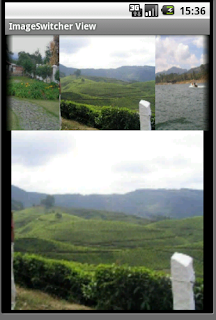
So, to begin with, first we need to declare the layout xml to have a gallery and the ImageSwitcher:
<Gallery
android:id="@+id/Gallery01"
android:layout_width="fill_parent"
android:layout_height="wrap_content"></Gallery>
<ImageSwitcher
android:id="@+id/ImageSwitcher01"
android:layout_width="fill_parent"
android:layout_height="fill_parent">
</ImageSwitcher>
The next thing that we need to do is create a class that not only extends Activity but also implements ViewFactory. The ViewFactory is a Interface that creates views that need to be shown in the ImageSwitcher. So it has one method makeView() which we need to implement. It is here that we can set the attributes of the ImageView that would be shown within the ImageSwitcher - like its background, it scale, its layout parameters etc. – typically those attributes that we would have otherwise statically set through a layout xml.
Here is the class declaration and the method makeView():
public class ImageSwitcherView extends Activity implements ViewFactory {
and
@Override
public View makeView() {
ImageView iView = new ImageView(this);
iView.setScaleType(ImageView.ScaleType.FIT_CENTER);
iView.setLayoutParams(new
ImageSwitcher.LayoutParams(
LayoutParams.FILL_PARENT,LayoutParams.FILL_PARENT));
iView.setBackgroundColor(0xFF000000);
return iView;
}
This alone is the real difference from the Gallery example.
Other smaller things we need to do is get a handle to the ImageSwitcher in the onCreate() method:
iSwitcher = (ImageSwitcher) findViewById(R.id.ImageSwitcher01);
iSwitcher.setFactory(this);
iSwitcher.setInAnimation(AnimationUtils.loadAnimation(this,
android.R.anim.fade_in));
iSwitcher.setOutAnimation(AnimationUtils.loadAnimation(this,
android.R.anim.fade_out));
Here we also set the animation on how the image should fly in and fly out of the area. Then, we get a handle to the gallery and set an ImageAdapter to it. The ImageAdpater is as described in my Gallery Example. If you have not seen that, please go through that and then try this example, as I would not want to repeat myself here.
Now on the click of a gallery image, we would want to pass the selected image to the ImageSwitcher and this is what we do here:
gallery.setOnItemClickListener(new OnItemClickListener() {
@Override
Monday, April 4, 2016
Fetching Result from a called activity Android Tutorial for Beginners – Part 5
The next logical step in learning the Android development is to look at how can you call or invoke one activity from another and get back data from the called activity back to the calling activity. For simplicity sake, let us name the first calling activity as parent activity and the invoked activity as the child activity.
For simplicity sake, I use an explicit intent for invoking the child activity. For simple invocation without expecting any data back, we use the method startActivity(). However, when we want a result to be returned by the child activity, we need to call it by the method startActivityForResult(). When the child activity finishes with the job, it should set the data in an intent and call the method setResult(resultcode, intent)to return the data through the intent.
The parent activity should have overridden the method onActivityResult(…)in order to be able to get the data and act upon it.
NOTE: for successful execution of this sequence of events, the child activity should call finish() after setResult(..)in order to give back the handle to the parent activity.
In summary, here are the methods to implement in the parent activity:
- 1. startActivtyForResult(..)
- 2. onActivityResult(…)
The child Activity should complete the work as usual and finally call:
- 1. setResult(…)
- 2. finish()
Let us delve into the example downloadable here:
The calling Activity is providing 2 buttons to view books and pens. On selecting one of them, either BooksActivityor PensActivityis called, which displays a list (using ListView) of the selected type of objects. The user can select one and the selected object is returned to the parent for display. (Note: this could be extended into a shopping cart example. I have kept it simple for the tutorial’s sake)
Since we are expecting to get back the selected object, the calling Activity’s code is like this:
Intent bookIntent = new Intent(); bookIntent.setClass(CallingActivity.this,BooksActivity.class);
startActivityForResult(bookIntent,BOOK_SELECT);
where BOOK_SELECT is just a constant to help us identify from which child activity the is result obtained, when there is more than 1 child activity, as in this case.
At this point the control is handed over to the BooksActivity. This displays the list of books and the user can scroll through and select a book. When the user selects a book, the selected book needs to be passed back to the CallingActivity. This is how it is done:
Object o = this.getListAdapter().getItem(position);
String book = o.toString();
Intent returnIntent = new Intent();
returnIntent.putExtra("SelectedBook",book);
setResult(RESULT_OK,returnIntent);
finish();
The first 2 lines show how to get the selected book from the ListView. Then, you create a new intent object, set the selected book as an extra and pass it back through the setResult(…)method call. The result code is set to RESULT_OKsince the job has been successfully done. After that the finish()method is called to give the control back to the parent activity.
In the parent, the method that gets the control is onActivityResult(…)
protected voidonActivityResult(int requestCode, int resultCode, Intent data)
{
switch(requestCode) {
case BOOK_SELECT:
if (resultCode == RESULT_OK) {
String name = data.getStringExtra("SelectedBook");
Toast.makeText(this, "You have chosen the book: " + " " + name, Toast.LENGTH_LONG).show();
break;
}
……….
}
}
Here you notice that the BOOK_SELECTconstant is used to act upon the result. If the result code is RESULT_OK, we take the book selected from the “extra” of the intent that is returned from the child activity. data.getStringExtra("SelectedBook") is called to and the name returned is displayed through a Toast.
Tuesday, March 22, 2016
Service and Notification Android Tutorial for Beginners – Part 8
Now that we have worked with services and notifications separately, we are all ready to use the two together to make a real service that is notified to the user through a status bar update that the service is running. The status bar removes the notification as soon as the service is stopped.
In this program, I also increment a counter once the service starts to show that the service is continuously running in the background while we do other work. When we stop the service we are able to see the updated count.
Let us look at the code:
I have created a class NotifyService which extends the service class. This is the service class that will be started through the activity – ServiceLauncher
Now let us see what the service does?
It does 3 things – Toast a message that the service has started. Update the status bar with a notification. Finally start incrementing the counter. All this is done in the onCreate() method of the NotifyService Class
Toast.makeText(this,"Service created at " + time.getTime(), Toast.LENGTH_LONG).show();
showNotification();
incrementCounter();
Here is theshowNotification() Method:
private void showNotification() {
CharSequence text = getText(R.string.service_started);
Notification notification = new Notification(R.drawable.android, text, System.currentTimeMillis());
PendingIntent contentIntent = PendingIntent.getActivity(this, 0,
new Intent(this, ServiceLauncher.class), 0);
notification.setLatestEventInfo(this, getText(R.string.service_label),
text, contentIntent);
nm.notify(R.string.service_started, notification);
}
Finally, here is the method for incrementing the counter incrementCounter():
private void incrementCounter() {
timer.scheduleAtFixedRate(new TimerTask(){ public void run() {counter++;}}, 0, 1000L);
}
On stopping the service, it obviously has to do the reverse actions: stop the counter, remove the status bar notification and then toast a message to the end user saying the service has stopped! So here it is:
shutdownCounter();
nm.cancel(R.string.service_started);
Toast.makeText(this, "Service destroyed at " + time.getTime() + "; counter is at: " + counter, Toast.LENGTH_LONG).show();
counter=null;
This is the code in the onDestroy()method in the NotifyServiceclass.
With this the service is ready. But we need to be able to start this service and stop it. This I have done through a ServiceLauncher class just as I had done in the previous part of this series. You can get the complete code here.
Friday, March 18, 2016
Slot City – Free Casino Slots v2 07 Free


Slot City - Slots Machines by Dragonplay, is a new Vegas style casino app where you can play amazing video slots anytime anywhere! Earn free Chips and bonuses while moving up the experience ranking levels, play and compete with your Facebook friends and enjoy hours of pure fun and entertainment. New video slots are added often so check back regularly.
? A simple interface means you can start playing in seconds
? Great slots, free coins and regular updates mean there’s always the right game for you
? Bonus coins and daily spins mean you’ll always have coins to play great slots like Temple of Wonders
? Connect with Facebook to save your games and share free coins with friends
? If you need more coins you can quickly purchase more with safe and secure in app purchase
WHAT PEOPLE ARE SAYING ABOUT SLOT CITY SLOT MACHINES
"Awesome game"
"Fun, challenging and many different games to choose from. Bravo!"
"Love it! Expanding Wild is amazing"
Whats New
Hi Slot City fans!
V2.07
Various game improvements, stability and optimizations.
Have Fun!
The Slot City Team
Read Here: How to Install APK
Requirements: Varies with Device
File Size: 23.78 MB
Download Link: Mediafire.com

