Pages

Showing posts with label 15. Show all posts

Friday, May 6, 2016

Install Android Studio on Ubuntu 15 10 using ubuntu developer tools center


remark:
ubuntu-developer-tools-center is now named Ubuntu Make officially.
Please check the updated "Install Android Studio on 64-bit Ubuntu-GNOME 15.10 with Ubuntu Make".


To install Android Studio on Ubuntu 15.10 using ubuntu-developer-tools-center
- install java (refer "Install Oracle java8 on Ubuntu 15.10 via PPA")
- Enter the command in Terminal:
$ sudo apt-get install ubuntu-developer-tools-center
$ udtc android

This video show installing Android Studio on 64-bit Ubuntu 15.10 (run in VirtualBox) using ubuntu-developer-tools-center.

Read More..

Saturday, April 30, 2016

Setup Hardware Devices debugging for Android Studio on Ubuntu 15 10

This video show how to setup /etc/udev/rules.d/51-android.rules in Ubuntu (behind VirtualBox) to enable hardware device debugging in Android Studio.


The development platform is 64-bit Ubuntu-GNOME 15.10 running in VirtualBox, with Android Studio installed with Ubuntu Make (umake).

To enable hardware device debugging in Ubuntu, you have to create /etc/udev/rules.d/51-android.rules file to add device IDs for your debugging devices. (refer: Android Developers Document Using Hardware Devices - Setting up a Device for Development)

Create /etc/udev/rules.d/51-android.rules file with sudo right, add the line and save:
SUBSYSTEM=="usb", ATTR{idVendor}=="18d1", MODE="0666", GROUP="plugdev"
where "18d1" is the USB Vendor ID for Google, Nexus 7 in my case.

Run the command:
$ sudo chmod a+r /etc/udev/rules.d/51-android.rules

This video show how to, behind VirtualBox.

Read More..

Friday, April 15, 2016

Pocket Heroes Unimited GOLD Crystal Goblin Coins Android Game Moded


Salam Blogger :) 
Selamat malam, jumpa lagi ma ane hehe. lagi banyak kerjaan di dunia real, jadi blm sempet update blog. jangankan Update blog, Update Hati aja blom. haha .OKe kali ini ane mau share game lagi, game andro yg udah di mod. Pocket Heroes , ini adalah game bergenre RPG. nah yang suka game RPG wajib download dah. Disini kalian bisa costume heroes kalian, buat team kalian yang tak terkalahkan, dll. oke lansung aja cek it.... 

Details Game: 
Name      : Pocket Heroes
Genre      : RPG
Platform  : Android 
Requires  : Android 2.2  and up

Modification on Game: 
- Unlimited Gold
- Unlimited Crystal
- Unlimited Goblin


Review Modif:

Screenshoot:


Tutorial Instal : 
1. Download game. 
2. Pindahkan Game ke Androidmu.
3. Uniinstal Version originalnya, jika ada.
4. Instal MOD apk & Play
5. Enjoyyy 


|DOWNLOAD|
Pocket Heroes - Unimited GOLD/Crystal/Goblin Coins[Android Game : Moded]

|Download Original game|
On Playstore

#Salam Blogger
#Semoga bermanfaat :)
#Ask? comment :)
Read More..

Thursday, March 31, 2016

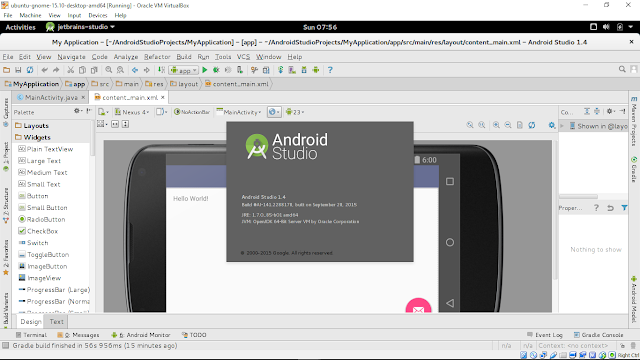
Install Android Studio on 64 bit Ubuntu 15 10 with Ubuntu Make umake

Ubuntu Make is a command line tool which allows you to download the latest version of popular developer tools (include Android Studio) on your installation, installing it longside all the required dependencies (which will only ask for root access if you dont have all the required dependencies installed already), enable multi-arch on your system if you are on a 64 bit machine, integrate it with the Unity launcher… Basically, one command to get your system ready to develop with!


To install Android Studio on Ubuntu:

- Add the Ubuntu Make ppa:
$ sudo add-apt-repository ppa:ubuntu-desktop/ubuntu-make
$ sudo apt-get update

- Install Ubuntu Make:
$ sudo apt-get install ubuntu-make

- Install android-studio:
$ umake android

Once finished, it will also install Java 7 (1.7.0_85 currently) on your system.

This video show how to install Android Studio on 64-bit Ubuntu-GNOME (run on VirtualBox) with Ubuntu Make.


Next:
- Setup Hardware Devices debugging for Android Studio on Ubuntu 15.10

Read More..

Wednesday, March 2, 2016

Location Manager Android Developer Tutorial Part 15


Location-based service is another key functionality that gets used by mobile applications. IT is often combined with maps to give a good user experience. We have already see how to use the external Google Maps API in tutorial Part 14. Here I will build upon the same to show how changes in location can be displayed on the map.
The location services are provided in the android.location package.


In order to use location services, our activity needs to implement the LocationManager Interface.
What does a LocationManager provide?


It is through this interface that an application can access the system’s location services. These services basically allow the application to obtain periodic updates of the device’s geographical location. It also helps in firing an application specific intent when the device comes within the proximity of a specified location.
Since in my example I want to simulate a location change and make my activity respond to the same, I am implementing this interface.


In order to make it an effective application, I have shown my location (hard-coded) on the google map. Then, I have used the location manager to handle any change in the location. The change in location needs to be simulated on the emulator by connecting through telnet. How to simulate location change is given at the end of this tutorial.


Now, dive into the code.


NOTE: I am adding the LocationManager implementation to the same MapActivity class created in the earlier tutorial (Part 14) and hence will not be explaining anything related to the maps API here.


Step 1: Obtain the LocationManager instance:


LocationManager lm = (LocationManager) getSystemService(Context.LOCATION_SERVICE);
lm.requestLocationUpdates(LocationManager.GPS_PROVIDER, 1000L, 500.0f, this);


After getting the location manager, I am setting default GPS provider and asking to be notified if the location changes by more than 500 meters from the current location, the frequency of updation being 1 sec.


Step 2:Override the onLocationChanged() method in order to respond to changes in location.


      public voidonLocationChanged(Location location) {
            if (location != null) {
                  double lat = location.getLatitude();
                  double lng = location.getLongitude();
                  String currentLocation = "The location is changed to Lat: " + lat + " Lng: " + lng;
                  myLoc.setText(currentLocation);
                  geoPoint = new GeoPoint((int) lat * 1000000, (int) lng * 1000000);
                  myMC.animateTo(geoPoint);
            }
      }


This method gets invoked when we change the location through the telnet connection to the emulator as described at the end of the tutorial. Based on the latitude and the longitude settings sent, the GeoPoint is changed to display the new location.


That is it. I have not overridden any of the other methods provided by the locationManager. Complete code is downloadable here.


How to simulate location change in the emulator?
Start the Emulator from eclipse
Start a command prompt
Start telnet
Then, type, o localhost 5554
This connects the telnet client to the android emulator (assuming emulator is running locally listening on port 5554. Else this connection fails)
Now type
geo fix 79.000000 13.000000 (or your latitude and longitude)
This sends the location change signal to the emulator.

Read More..

Monday, February 29, 2016

Android example code using ColorFilter


MainActivity.java
package com.blogspot.android_er.androidcolorfilter;

import android.graphics.ColorFilter;
import android.graphics.ColorMatrixColorFilter;
import android.os.Bundle;
import android.support.v7.app.AppCompatActivity;
import android.widget.ImageView;
import android.widget.SeekBar;

public class MainActivity extends AppCompatActivity {

ImageView imageView;
SeekBar redBar, greenBar, blueBar;

@Override
protected void onCreate(Bundle savedInstanceState) {
super.onCreate(savedInstanceState);
setContentView(R.layout.activity_main);

imageView = (ImageView)findViewById(R.id.iv);
redBar = (SeekBar)findViewById(R.id.redbar);
greenBar = (SeekBar)findViewById(R.id.greenbar);
blueBar = (SeekBar)findViewById(R.id.bluebar);

redBar.setOnSeekBarChangeListener(colorBarChangeListener);
greenBar.setOnSeekBarChangeListener(colorBarChangeListener);
blueBar.setOnSeekBarChangeListener(colorBarChangeListener);

setColorFilter(imageView);
}

SeekBar.OnSeekBarChangeListener colorBarChangeListener
= new SeekBar.OnSeekBarChangeListener(){

@Override
public void onProgressChanged(SeekBar seekBar, int progress, boolean fromUser) {
setColorFilter(imageView);
}

@Override
public void onStartTrackingTouch(SeekBar seekBar) {

}

@Override
public void onStopTrackingTouch(SeekBar seekBar) {

}
};

private void setColorFilter(ImageView iv){

/*
* 5x4 matrix for transforming the color+alpha components of a Bitmap.
* The matrix is stored in a single array, and its treated as follows:
* [ a, b, c, d, e,
* f, g, h, i, j,
* k, l, m, n, o,
* p, q, r, s, t ]
*
* When applied to a color [r, g, b, a], the resulting color is computed
* as (after clamping)
* R = a*R + b*G + c*B + d*A + e;
* G = f*R + g*G + h*B + i*A + j;
* B = k*R + l*G + m*B + n*A + o;
* A = p*R + q*G + r*B + s*A + t;
*/

float redValue = ((float)redBar.getProgress())/255;
float greenValue = ((float)greenBar.getProgress())/255;
float blueValue = ((float)blueBar.getProgress())/255;

float[] colorMatrix = {
redValue, 0, 0, 0, 0, //red
0, greenValue, 0, 0, 0, //green
0, 0, blueValue, 0, 0, //blue
0, 0, 0, 1, 0 //alpha
};

ColorFilter colorFilter = new ColorMatrixColorFilter(colorMatrix);
iv.setColorFilter(colorFilter);
}

}


layout/activity_main.xml
<?xml version="1.0" encoding="utf-8"?>
<LinearLayout


android_layout_width="match_parent"
android_layout_height="match_parent"
android_padding="16dp"
android_orientation="vertical"
tools_context=".MainActivity">

<TextView
android_layout_width="wrap_content"
android_layout_height="wrap_content"
android_layout_gravity="center_horizontal"
android_autoLink="web"
android_text="http://android-er.blogspot.com/"
android_textStyle="bold" />

<ImageView
android_id="@+id/iv"
android_layout_width="wrap_content"
android_layout_height="wrap_content"
android_src="@mipmap/ic_launcher"/>

<SeekBar
android_id="@+id/redbar"
android_layout_width="match_parent"
android_layout_height="wrap_content"
android_max="255"
android_progress="255"/>
<SeekBar
android_id="@+id/greenbar"
android_layout_width="match_parent"
android_layout_height="wrap_content"
android_max="255"
android_progress="255"/>
<SeekBar
android_id="@+id/bluebar"
android_layout_width="match_parent"
android_layout_height="wrap_content"
android_max="255"
android_progress="255"/>
</LinearLayout>


Related:
- Convert ImageView to black and white, and set brightness, using ColorFilter

Read More..

Wednesday, February 24, 2016

lor: bl"

listview,of,data,from,sqlitedatabase,android
Read More..

Saturday, February 13, 2016

Doing More with Java Android and Tomcat Edition

Doing More with Java: Android and Tomcat Edition

This Doing More With book helps you move from introductory Java to more powerful tools and concepts. As you go through the book you get to where you can connect an Android app to a Hibernate/Tomcat server. Unlike many programming books, this one helps you gain all the skills to create mobile connected apps. Using HTTP from Android with JSON, Hibernate, and MySQL a complete JSON Web Service can be created and consumed.

The tone of the book is intended to be light rather than pedantic and hints and tips based on the author’s life experience are included.

Read More..

Champ Man 15 Infinite coaching funds CM Android Game Moded


salam blogger :)
udah malem aja nih, banyak tugas menanti tapi selow ajalah jgn di pikirin. :D abis ini di baru kerjain dikit2 :D , yuk lah ane mau share2 lagi nih game2 yg udah di mod. kali ini bertema manager footbal. dengan mod ini kalian bisa dah beli pemain2 dewa, kayak messi dan c.ronaldo. haha . dan menjadi tim kalian kuat... :D sedot ajalah langsung :D

Details Game: 
Name      : Champ Man 15
Genre      : Manager, sport
Platform  : Android 
Requires  : Android 2.3.3  and up

Modification on Game: 
- Infinite coaching funds
- Infinite CM$

Review Modif:

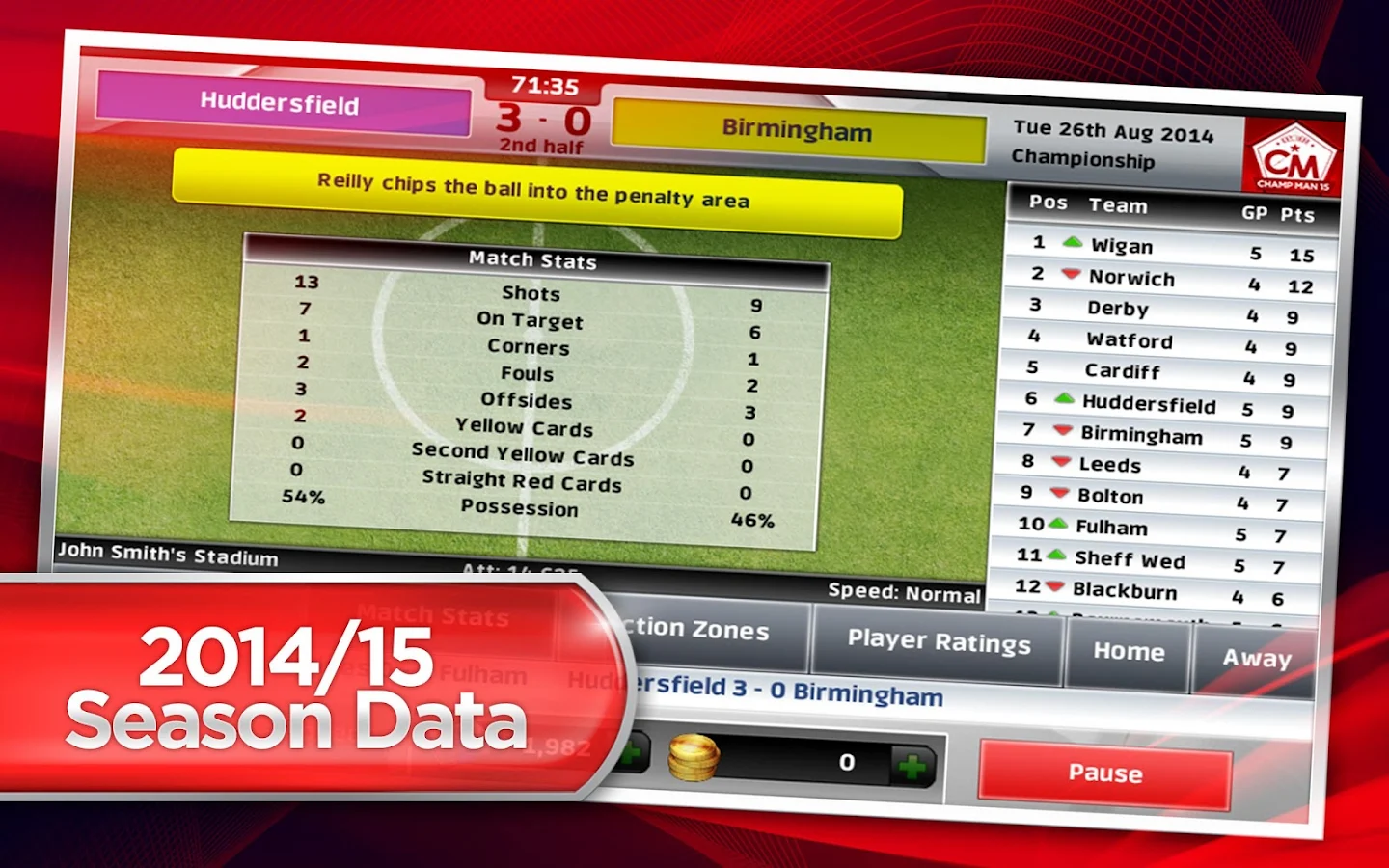
Screenshoot:


Tutorial Instal : 
1. Download game. 
2. Pindahkan Game ke Androidmu.
3. Uniinstal Version originalnya, jika ada.
4. Instal MOD apk & Play
5. Enjoyyy 


|DOWNLOAD|
Champ Man 15- Infinite coaching funds&CM$[Android Game : Moded]

|Download Original game|

On Playstore


#Salam Blogger
#Semoga bermanfaat :)
#Ask? comment :) 
Read More..