The post in my another blogspot show how to "Config Raspberry Pi to use HC-06 Bluetooth Module, as Serial Terminal".
My former post show how "Android communicate with Arduino + HC-06 Bluetooth Module" to link Android with other serial devices via bluetooth. Actually, it can communicate with Raspberry Pi + HC-06 also.
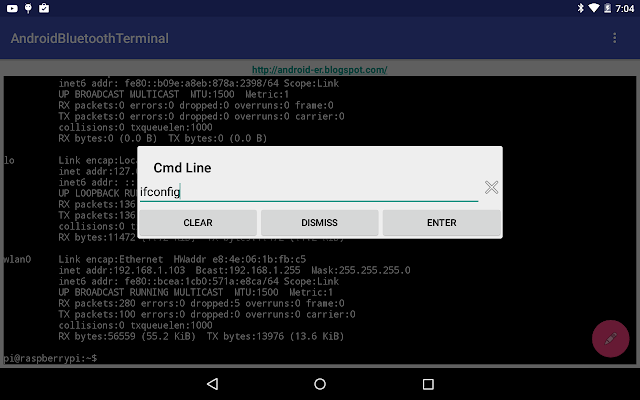
This example I re-code "Android communicate with Arduino + HC-06 Bluetooth Module" to make it work like a serial terminal to log-in Raspberry Pi via bluetooth.
- Prepare on Raspberry Pi 2, to config serial terminal work on 9600 baud, refer "Config Raspberry Pi to use HC-06 Bluetooth Module, as Serial Terminal".
- The Android and HC-06 have to pair in advance.
Create a new project of Blank Activity in Android Studio,
layout/content_main.xml, its the main terminal screen.
<?xml version="1.0" encoding="utf-8"?>
<LinearLayout


 android_layout_width="match_parent"
 android_layout_height="match_parent"
 android_padding="5dp"
 android_orientation="vertical"
 app_layout_behavior="@string/appbar_scrolling_view_behavior"
 tools_showIn="@layout/activity_main"
 tools_context=".MainActivity">

 <TextView
 android_layout_width="wrap_content"
 android_layout_height="wrap_content"
 android_layout_gravity="center_horizontal"
 android_autoLink="web"
 android_text="http://android-er.blogspot.com/"
 android_textStyle="bold" />

 <TextView
 android_id="@+id/body"
 android_layout_width="match_parent"
 android_layout_height="match_parent"
 android_textColor="@android:color/white"
 android_background="@android:color/black"
 android_typeface="monospace"
 android_gravity="bottom"/>

</LinearLayout>
Edit layout/activity_main.xml, just to change the icon of the FloatingActionButton.
<?xml version="1.0" encoding="utf-8"?>
<android.support.design.widget.CoordinatorLayout


  android_layout_width="match_parent"
 android_layout_height="match_parent" android_fitsSystemWindows="true"
 tools_context=".MainActivity">

 <android.support.design.widget.AppBarLayout android_layout_height="wrap_content"
 android_layout_width="match_parent" android_theme="@style/AppTheme.AppBarOverlay">

 <android.support.v7.widget.Toolbar android_id="@+id/toolbar"
 android_layout_width="match_parent" android_layout_height="?attr/actionBarSize"
 android_background="?attr/colorPrimary" app_popupTheme="@style/AppTheme.PopupOverlay" />

 </android.support.design.widget.AppBarLayout>

 <include layout="@layout/content_main" />

 <android.support.design.widget.FloatingActionButton android_id="@+id/fab"
 android_layout_width="wrap_content" android_layout_height="wrap_content"
 android_layout_gravity="bottom|end" android_layout_margin="@dimen/fab_margin"
 android_src="@android:drawable/ic_menu_edit" />

</android.support.design.widget.CoordinatorLayout>
Create layout/setting_layout.xml, the layout of SettingDialog (OptionsMenu -> Setting), to list paired bluetooth to connect.
<?xml version="1.0" encoding="utf-8"?>
<LinearLayout

 android_orientation="vertical"
 android_layout_width="match_parent"
 android_layout_height="match_parent">

 <ListView
 android_id="@+id/pairedlist"
 android_layout_width="match_parent"
 android_layout_height="match_parent"/>

</LinearLayout>
Create layout/typing_layout.xml, the layout of CmdLineDialog (open once FloatingActionButton is clicked), for user to enter command.
<?xml version="1.0" encoding="utf-8"?>
<LinearLayout

 android_orientation="vertical"
 android_layout_width="match_parent"
 android_layout_height="match_parent">


 <LinearLayout
 android_layout_width="match_parent"
 android_layout_height="wrap_content"
 android_orientation="horizontal">
 <EditText
 android_id="@+id/cmdline"
 android_layout_weight="1"
 android_layout_width="0dp"
 android_layout_height="wrap_content" />

 <ImageView
 android_id="@+id/clearcmd"
 android_layout_width="wrap_content"
 android_src="@android:drawable/ic_menu_close_clear_cancel"
 android_layout_height="wrap_content" />
 </LinearLayout>
 <LinearLayout
 android_layout_width="match_parent"
 android_layout_height="match_parent"
 android_orientation="horizontal">
 <Button
 android_id="@+id/clear"
 android_layout_width="0dp"
 android_layout_height="wrap_content"
 android_layout_weight="1"
 android_text="Clear"/>
 <Button
 android_id="@+id/dismiss"
 android_layout_width="0dp"
 android_layout_height="wrap_content"
 android_layout_weight="1"
 android_text="Dismiss"/>
 <Button
 android_id="@+id/enter"
 android_layout_width="0dp"
 android_layout_height="wrap_content"
 android_layout_weight="1"
 android_text="Enter"/>
 </LinearLayout>

</LinearLayout>
MainActivity.java
[remark: a bug here, refer Update@2015-11-11on bottom of this post.]
package com.blogspot.android_er.androidbluetoothterminal;

import android.app.Activity;
import android.app.Dialog;
import android.app.DialogFragment;
import android.app.Fragment;
import android.app.FragmentTransaction;
import android.bluetooth.BluetoothAdapter;
import android.bluetooth.BluetoothDevice;
import android.bluetooth.BluetoothSocket;
import android.content.Intent;
import android.content.pm.PackageManager;
import android.os.Bundle;
import android.support.annotation.Nullable;
import android.support.design.widget.FloatingActionButton;
import android.support.v7.app.AppCompatActivity;
import android.support.v7.widget.Toolbar;
import android.text.method.ScrollingMovementMethod;
import android.view.LayoutInflater;
import android.view.Menu;
import android.view.MenuItem;
import android.view.View;
import android.view.ViewGroup;
import android.widget.AdapterView;
import android.widget.ArrayAdapter;
import android.widget.Button;
import android.widget.EditText;
import android.widget.ImageView;
import android.widget.ListView;
import android.widget.TextView;
import android.widget.Toast;

import java.io.IOException;
import java.io.InputStream;
import java.io.OutputStream;
import java.util.ArrayList;
import java.util.Set;
import java.util.UUID;

public class MainActivity extends AppCompatActivity {

 private static final int REQUEST_ENABLE_BT = 1;

 BluetoothAdapter bluetoothAdapter;

 ArrayList<BluetoothDevice> pairedDeviceArrayList;
 ArrayAdapter<BluetoothDevice> pairedDeviceAdapter;
 private static UUID myUUID;
 private final String UUID_STRING_WELL_KNOWN_SPP =
 "00001101-0000-1000-8000-00805F9B34FB";

 ThreadConnectBTdevice myThreadConnectBTdevice;
 ThreadConnected myThreadConnected;

 static TextView body;
 FloatingActionButton fab;

 @Override
 protected void onCreate(Bundle savedInstanceState) {
 super.onCreate(savedInstanceState);
 setContentView(R.layout.activity_main);
 Toolbar toolbar = (Toolbar) findViewById(R.id.toolbar);
 setSupportActionBar(toolbar);

 body = (TextView)findViewById(R.id.body);
 body.setMovementMethod(new ScrollingMovementMethod());

 fab = (FloatingActionButton) findViewById(R.id.fab);
 fab.setOnClickListener(new View.OnClickListener() {
 @Override
 public void onClick(View view) {
 showCmdLineDialog();
 }
 });

 fab.setEnabled(false);
 fab.setVisibility(FloatingActionButton.GONE);

 if (!getPackageManager().hasSystemFeature(PackageManager.FEATURE_BLUETOOTH)){
 Toast.makeText(this,
 "FEATURE_BLUETOOTH NOT support",
 Toast.LENGTH_LONG).show();
 finish();
 return;
 }

 //using the well-known SPP UUID
 myUUID = UUID.fromString(UUID_STRING_WELL_KNOWN_SPP);

 bluetoothAdapter = BluetoothAdapter.getDefaultAdapter();
 if (bluetoothAdapter == null) {
 Toast.makeText(this,
 "Bluetooth is not supported on this hardware platform",
 Toast.LENGTH_LONG).show();
 finish();
 return;
 }

 String strInfo = bluetoothAdapter.getName() + " " +
 bluetoothAdapter.getAddress();
 Toast.makeText(getApplicationContext(), strInfo, Toast.LENGTH_LONG).show();

 }

 @Override
 protected void onStart() {
 super.onStart();

 //Turn ON BlueTooth if it is OFF
 if (!bluetoothAdapter.isEnabled()) {
 Intent enableIntent = new Intent(BluetoothAdapter.ACTION_REQUEST_ENABLE);
 startActivityForResult(enableIntent, REQUEST_ENABLE_BT);
 }
 }

 @Override
 protected void onDestroy() {
 super.onDestroy();
 closeThreads();
 }

 private void closeThreads(){
 if(myThreadConnectBTdevice!=null){
 myThreadConnectBTdevice.cancel();
 myThreadConnectBTdevice = null;
 }

 if(myThreadConnected!=null){
 myThreadConnected.cancel();
 myThreadConnected = null;
 }
 }

 @Override
 protected void onActivityResult(int requestCode, int resultCode, Intent data) {
 if(requestCode==REQUEST_ENABLE_BT){
 if(resultCode == Activity.RESULT_OK){

 }else{
 Toast.makeText(this,
 "BlueTooth NOT enabled",
 Toast.LENGTH_SHORT).show();
 finish();
 }
 }
 }

 @Override
 public boolean onCreateOptionsMenu(Menu menu) {
 // Inflate the menu; this adds items to the action bar if it is present.
 getMenuInflater().inflate(R.menu.menu_main, menu);
 return true;
 }

 @Override
 public boolean onOptionsItemSelected(MenuItem item) {
 // Handle action bar item clicks here. The action bar will
 // automatically handle clicks on the Home/Up button, so long
 // as you specify a parent activity in AndroidManifest.xml.
 int id = item.getItemId();

 //noinspection SimplifiableIfStatement
 if (id == R.id.action_settings) {
 closeThreads();
 fab.setEnabled(false);
 fab.setVisibility(FloatingActionButton.GONE);
 body.setText("");
 showSettingDialog();
 return true;
 }

 return super.onOptionsItemSelected(item);
 }

 void showSettingDialog() {
 FragmentTransaction ft = getFragmentManager().beginTransaction();
 Fragment prev = getFragmentManager().findFragmentByTag("dialog");
 if (prev != null) {
 ft.remove(prev);
 }
 ft.addToBackStack(null);

 DialogFragment newFragment = SettingDialogFragment.newInstance(MainActivity.this);
 newFragment.show(ft, "dialog");

 }

 void showCmdLineDialog() {

 if(myThreadConnected == null){
 Toast.makeText(MainActivity.this,
 "myThreadConnected == null",
 Toast.LENGTH_LONG).show();
 return;
 }

 FragmentTransaction ft = getFragmentManager().beginTransaction();
 Fragment prev = getFragmentManager().findFragmentByTag("cmdline");
 if (prev != null) {
 ft.remove(prev);
 }
 ft.addToBackStack(null);

 DialogFragment newFragment = TypingDialogFragment.newInstance(MainActivity.this, myThreadConnected);
 newFragment.show(ft, "cmdline");

 }

 private void setup(ListView lv, final Dialog dialog) {
 Set<BluetoothDevice> pairedDevices = bluetoothAdapter.getBondedDevices();
 if (pairedDevices.size() > 0) {
 pairedDeviceArrayList = new ArrayList<BluetoothDevice>();

 for (BluetoothDevice device : pairedDevices) {
 pairedDeviceArrayList.add(device);
 }

 pairedDeviceAdapter = new ArrayAdapter<BluetoothDevice>(this,
 android.R.layout.simple_list_item_1, pairedDeviceArrayList);
 lv.setAdapter(pairedDeviceAdapter);

 lv.setOnItemClickListener(new AdapterView.OnItemClickListener() {

 @Override
 public void onItemClick(AdapterView<?> parent, View view,
 int position, long id) {
 BluetoothDevice device =
 (BluetoothDevice) parent.getItemAtPosition(position);
 Toast.makeText(MainActivity.this,
 "Name: " + device.getName() + " "
 + "Address: " + device.getAddress() + " "
 + "BondState: " + device.getBondState() + " "
 + "BluetoothClass: " + device.getBluetoothClass() + " "
 + "Class: " + device.getClass(),
 Toast.LENGTH_LONG).show();

 Toast.makeText(MainActivity.this, "start ThreadConnectBTdevice", Toast.LENGTH_LONG).show();
 myThreadConnectBTdevice = new ThreadConnectBTdevice(device, dialog);
 myThreadConnectBTdevice.start();
 }
 });
 }
 }

 public static class SettingDialogFragment extends DialogFragment {

 ListView listViewPairedDevice;
 static MainActivity parentActivity;

 static SettingDialogFragment newInstance(MainActivity parent){
 parentActivity = parent;
 SettingDialogFragment f = new SettingDialogFragment();
 return f;
 }

 @Nullable
 @Override
 public View onCreateView(LayoutInflater inflater,
 ViewGroup container, Bundle savedInstanceState) {
 getDialog().setTitle("Setting");
 getDialog().setCanceledOnTouchOutside(false);
 View settingDialogView = inflater.inflate(R.layout.setting_layout, container, false);

 listViewPairedDevice = (ListView)settingDialogView.findViewById(R.id.pairedlist);

 parentActivity.setup(listViewPairedDevice, getDialog());

 return settingDialogView;
 }
 }

 public static class TypingDialogFragment extends DialogFragment {

 EditText cmdLine;
 static MainActivity parentActivity;
 static ThreadConnected cmdThreadConnected;

 static TypingDialogFragment newInstance(MainActivity parent, ThreadConnected thread){
 parentActivity = parent;
 cmdThreadConnected = thread;
 TypingDialogFragment f = new TypingDialogFragment();
 return f;
 }

 @Nullable
 @Override
 public View onCreateView(LayoutInflater inflater,
 ViewGroup container, Bundle savedInstanceState) {
 getDialog().setTitle("Cmd Line");
 getDialog().setCanceledOnTouchOutside(false);
 View typingDialogView = inflater.inflate(R.layout.typing_layout, container, false);

 cmdLine = (EditText)typingDialogView.findViewById(R.id.cmdline);

 ImageView imgCleaarCmd = (ImageView)typingDialogView.findViewById(R.id.clearcmd);
 imgCleaarCmd.setOnClickListener(new View.OnClickListener() {
 @Override
 public void onClick(View v) {
 cmdLine.setText("");
 }
 });

 Button btnEnter = (Button)typingDialogView.findViewById(R.id.enter);
 btnEnter.setOnClickListener(new View.OnClickListener() {
 @Override
 public void onClick(View v) {
 if(cmdThreadConnected!=null){
 byte[] bytesToSend = cmdLine.getText().toString().getBytes();
 cmdThreadConnected.write(bytesToSend);
 byte[] NewLine = " ".getBytes();
 cmdThreadConnected.write(NewLine);
 }
 }
 });

 Button btnDismiss = (Button)typingDialogView.findViewById(R.id.dismiss);
 btnDismiss.setOnClickListener(new View.OnClickListener() {
 @Override
 public void onClick(View v) {
 dismiss();
 }
 });

 Button btnClear = (Button)typingDialogView.findViewById(R.id.clear);
 btnClear.setOnClickListener(new View.OnClickListener() {
 @Override
 public void onClick(View v) {
 body.setText("");
 }
 });

 return typingDialogView;
 }
 }

 //Called in ThreadConnectBTdevice once connect successed
 //to start ThreadConnected
 private void startThreadConnected(BluetoothSocket socket){

 myThreadConnected = new ThreadConnected(socket);
 myThreadConnected.start();
 }

 /*
 ThreadConnectBTdevice:
 Background Thread to handle BlueTooth connecting
 */
 private class ThreadConnectBTdevice extends Thread {

 private BluetoothSocket bluetoothSocket = null;
 private final BluetoothDevice bluetoothDevice;
 Dialog dialog;

 private ThreadConnectBTdevice(BluetoothDevice device, Dialog dialog) {
 this.dialog = dialog;
 bluetoothDevice = device;

 try {
 bluetoothSocket = device.createRfcommSocketToServiceRecord(myUUID);
 Toast.makeText(MainActivity.this,
 "bluetoothSocket: " + bluetoothSocket,
 Toast.LENGTH_SHORT).show();
 } catch (IOException e) {
 // TODO Auto-generated catch block
 e.printStackTrace();
 }
 }

 @Override
 public void run() {
 boolean success = false;
 try {
 bluetoothSocket.connect();
 success = true;
 } catch (IOException e) {
 e.printStackTrace();

 final String eMessage = e.getMessage();
 runOnUiThread(new Runnable() {

 @Override
 public void run() {
 Toast.makeText(MainActivity.this,
 "something wrong bluetoothSocket.connect(): " + eMessage,
 Toast.LENGTH_SHORT).show();
 }
 });

 try {
 bluetoothSocket.close();
 } catch (IOException e1) {
 // TODO Auto-generated catch block
 e1.printStackTrace();
 }
 }

 if(success){
 //connect successful
 final String msgconnected = "connect successful: "
 + "BluetoothSocket: " + bluetoothSocket + " "
 + "BluetoothDevice: " + bluetoothDevice;

 runOnUiThread(new Runnable() {

 @Override
 public void run() {
 fab.setEnabled(true);
 fab.setVisibility(FloatingActionButton.VISIBLE);
 body.setText("");
 Toast.makeText(MainActivity.this, msgconnected, Toast.LENGTH_LONG).show();
 dialog.dismiss();
 }
 });

 startThreadConnected(bluetoothSocket);

 }else{
 //fail
 }
 }

 public void cancel() {

 Toast.makeText(getApplicationContext(),
 "close bluetoothSocket",
 Toast.LENGTH_LONG).show();
 try {
 bluetoothSocket.close();
 } catch (IOException e) {
 // TODO Auto-generated catch block
 e.printStackTrace();
 }

 }

 }

 /*
 ThreadConnected:
 Background Thread to handle Bluetooth data communication
 after connected
 */
 private class ThreadConnected extends Thread {
 private final BluetoothSocket connectedBluetoothSocket;
 private final InputStream connectedInputStream;
 private final OutputStream connectedOutputStream;

 boolean running;

 public ThreadConnected(BluetoothSocket socket) {
 connectedBluetoothSocket = socket;
 InputStream in = null;
 OutputStream out = null;
 running = true;
 try {
 in = socket.getInputStream();
 out = socket.getOutputStream();
 } catch (IOException e) {
 // TODO Auto-generated catch block
 e.printStackTrace();
 }

 connectedInputStream = in;
 connectedOutputStream = out;
 }

 @Override
 public void run() {
 byte[] buffer = new byte[1024];
 int bytes;

 String strRx = "";

 while (running) {
 try {
 bytes = connectedInputStream.read(buffer);
 final String strReceived = new String(buffer, 0, bytes);
 final String strByteCnt = String.valueOf(bytes) + " bytes received. ";

 runOnUiThread(new Runnable(){

 @Override
 public void run() {
 body.append(strReceived);
 }});

 } catch (IOException e) {
 // TODO Auto-generated catch block
 e.printStackTrace();

 final String msgConnectionLost = "Connection lost: "
 + e.getMessage();
 runOnUiThread(new Runnable(){

 @Override
 public void run() {
 Toast.makeText(MainActivity.this, msgConnectionLost, Toast.LENGTH_LONG).show();

 }});
 }
 }
 }

 public void write(byte[] buffer) {
 try {
 connectedOutputStream.write(buffer);
 } catch (IOException e) {
 // TODO Auto-generated catch block
 e.printStackTrace();
 }
 }

 public void cancel() {
 running = false;
 try {
 connectedBluetoothSocket.close();
 } catch (IOException e) {
 // TODO Auto-generated catch block
 e.printStackTrace();
 }
 }
 }

}
uses-permission of "android.permission.BLUETOOTH" is needed in src/main/AndroidManifest.xml.
<?xml version="1.0" encoding="utf-8"?>
<manifest
 package="com.blogspot.android_er.androidbluetoothterminal" >

 <uses-permission android_name="android.permission.BLUETOOTH"/>
 <application
 android_allowBackup="true"
 android_icon="@mipmap/ic_launcher"
 android_label="@string/app_name"
 android_supportsRtl="true"
 android_theme="@style/AppTheme" >
 <activity
 android_name=".MainActivity"
 android_label="@string/app_name"
 android_theme="@style/AppTheme.NoActionBar" >
 <intent-filter>
 <action android_name="android.intent.action.MAIN" />

 <category android_name="android.intent.category.LAUNCHER" />
 </intent-filter>
 </activity>
 </application>

</manifest>
 Download the files (Android Studio Format) .Download APK .
Update@2015-11-11:
In the above code of MainActivity.java, in run() of ThreadConnected, if Connection lost (such as Raspberry Pi or HC-06 power OFF), the thread will still keep running.
So have to cancel the thread and disable the FloatingActionButton. Modify run() of ThreadConnected.
 @Override
 public void run() {
 byte[] buffer = new byte[1024];
 int bytes;

 String strRx = "";

 while (running) {
 try {
 bytes = connectedInputStream.read(buffer);
 final String strReceived = new String(buffer, 0, bytes);
 final String strByteCnt = String.valueOf(bytes) + " bytes received. ";

 runOnUiThread(new Runnable(){

 @Override
 public void run() {
 body.append(strReceived);
 }});

 } catch (IOException e) {
 // TODO Auto-generated catch block
 e.printStackTrace();

 cancel();

 final String msgConnectionLost = "Connection lost: "
 + e.getMessage();
 runOnUiThread(new Runnable(){

 @Override
 public void run() {
 Toast.makeText(MainActivity.this, msgConnectionLost, Toast.LENGTH_LONG).show();

 fab.setEnabled(false);
 fab.setVisibility(FloatingActionButton.GONE);

 }});
 }
 }
 }


