The post in my another blogspot show how to "Config Raspberry Pi to use HC-06 Bluetooth Module, as Serial Terminal".
My former post show how "Android communicate with Arduino + HC-06 Bluetooth Module" to link Android with other serial devices via bluetooth. Actually, it can communicate with Raspberry Pi + HC-06 also.
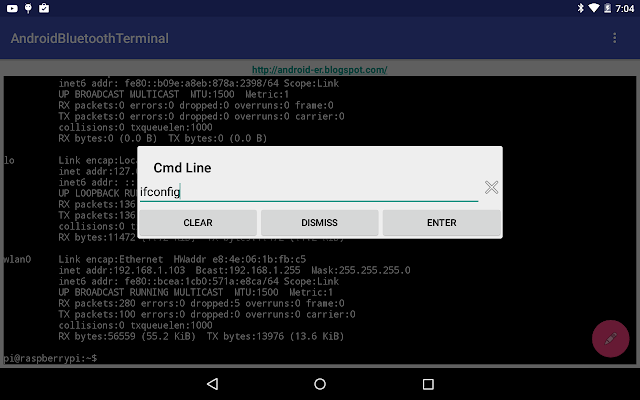
This example I re-code "Android communicate with Arduino + HC-06 Bluetooth Module" to make it work like a serial terminal to log-in Raspberry Pi via bluetooth.
- Prepare on Raspberry Pi 2, to config serial terminal work on 9600 baud, refer "Config Raspberry Pi to use HC-06 Bluetooth Module, as Serial Terminal". - The Android and HC-06 have to pair in advance.
Create a new project of Blank Activity in Android Studio,
layout/content_main.xml, its the main terminal screen.
if (!getPackageManager().hasSystemFeature(PackageManager.FEATURE_BLUETOOTH)){ Toast.makeText(this, "FEATURE_BLUETOOTH NOT support", Toast.LENGTH_LONG).show(); finish(); return; }
//using the well-known SPP UUID myUUID = UUID.fromString(UUID_STRING_WELL_KNOWN_SPP);
bluetoothAdapter = BluetoothAdapter.getDefaultAdapter(); if (bluetoothAdapter == null) { Toast.makeText(this, "Bluetooth is not supported on this hardware platform", Toast.LENGTH_LONG).show(); finish(); return; }
//Turn ON BlueTooth if it is OFF if (!bluetoothAdapter.isEnabled()) { Intent enableIntent = new Intent(BluetoothAdapter.ACTION_REQUEST_ENABLE); startActivityForResult(enableIntent, REQUEST_ENABLE_BT); } }
}else{ Toast.makeText(this, "BlueTooth NOT enabled", Toast.LENGTH_SHORT).show(); finish(); } } }
@Override public boolean onCreateOptionsMenu(Menu menu) { // Inflate the menu; this adds items to the action bar if it is present. getMenuInflater().inflate(R.menu.menu_main, menu); return true; }
@Override public boolean onOptionsItemSelected(MenuItem item) { // Handle action bar item clicks here. The action bar will // automatically handle clicks on the Home/Up button, so long // as you specify a parent activity in AndroidManifest.xml. int id = item.getItemId();
//noinspection SimplifiableIfStatement if (id == R.id.action_settings) { closeThreads(); fab.setEnabled(false); fab.setVisibility(FloatingActionButton.GONE); body.setText(""); showSettingDialog(); return true; }
return super.onOptionsItemSelected(item); }
void showSettingDialog() { FragmentTransaction ft = getFragmentManager().beginTransaction(); Fragment prev = getFragmentManager().findFragmentByTag("dialog"); if (prev != null) { ft.remove(prev); } ft.addToBackStack(null);
/* ThreadConnected: Background Thread to handle Bluetooth data communication after connected */ private class ThreadConnected extends Thread { private final BluetoothSocket connectedBluetoothSocket; private final InputStream connectedInputStream; private final OutputStream connectedOutputStream;
boolean running;
public ThreadConnected(BluetoothSocket socket) { connectedBluetoothSocket = socket; InputStream in = null; OutputStream out = null; running = true; try { in = socket.getInputStream(); out = socket.getOutputStream(); } catch (IOException e) { // TODO Auto-generated catch block e.printStackTrace(); }
Update@2015-11-11: In the above code of MainActivity.java, in run() of ThreadConnected, if Connection lost (such as Raspberry Pi or HC-06 power OFF), the thread will still keep running.
So have to cancel the thread and disable the FloatingActionButton. Modify run() of ThreadConnected.
@Override public void run() { byte[] buffer = new byte[1024]; int bytes;
String strRx = "";
while (running) { try { bytes = connectedInputStream.read(buffer); final String strReceived = new String(buffer, 0, bytes); final String strByteCnt = String.valueOf(bytes) + " bytes received. ";
runOnUiThread(new Runnable(){
@Override public void run() { body.append(strReceived); }});
Its my old post "Android example to communicate with Bluetooth device, HC-06 Bluetooth Module", to make a Android phone communicate with Arduino + HC-06 Bluetooth Module. In the example, the first byte always lost.
After more test, I found that the first byte not lost. Because the byte stream sent from Arduino not in sync with Android side, and the bytes may be separated in different slot received in Android ThreadConnected, and the old slot covered by the new slot.
To show it, I modify it not to clear the TextView.
MainActivity.java
/* Android Example to connect to and communicate with Bluetooth In this exercise, the target is a Arduino Due + HC-06 (Bluetooth Module)
Ref: - Make BlueTooth connection between Android devices http://android-er.blogspot.com/2014/12/make-bluetooth-connection-between.html - Bluetooth communication between Android devices http://android-er.blogspot.com/2014/12/bluetooth-communication-between-android.html */ package com.example.androidbtcontrol;
if (!getPackageManager().hasSystemFeature(PackageManager.FEATURE_BLUETOOTH)){ Toast.makeText(this, "FEATURE_BLUETOOTH NOT support", Toast.LENGTH_LONG).show(); finish(); return; }
//using the well-known SPP UUID myUUID = UUID.fromString(UUID_STRING_WELL_KNOWN_SPP);
bluetoothAdapter = BluetoothAdapter.getDefaultAdapter(); if (bluetoothAdapter == null) { Toast.makeText(this, "Bluetooth is not supported on this hardware platform", Toast.LENGTH_LONG).show(); finish(); return; }
//Turn ON BlueTooth if it is OFF if (!bluetoothAdapter.isEnabled()) { Intent enableIntent = new Intent(BluetoothAdapter.ACTION_REQUEST_ENABLE); startActivityForResult(enableIntent, REQUEST_ENABLE_BT); }
setup(); }
private void setup() { Set<BluetoothDevice> pairedDevices = bluetoothAdapter.getBondedDevices(); if (pairedDevices.size() > 0) { pairedDeviceArrayList = new ArrayList<BluetoothDevice>();
for (BluetoothDevice device : pairedDevices) { pairedDeviceArrayList.add(device); }
pairedDeviceAdapter = new ArrayAdapter<BluetoothDevice>(this, android.R.layout.simple_list_item_1, pairedDeviceArrayList); listViewPairedDevice.setAdapter(pairedDeviceAdapter);
/* ThreadConnected: Background Thread to handle Bluetooth data communication after connected */ private class ThreadConnected extends Thread { private final BluetoothSocket connectedBluetoothSocket; private final InputStream connectedInputStream; private final OutputStream connectedOutputStream;
public ThreadConnected(BluetoothSocket socket) { connectedBluetoothSocket = socket; InputStream in = null; OutputStream out = null;
try { in = socket.getInputStream(); out = socket.getOutputStream(); } catch (IOException e) { // TODO Auto-generated catch block e.printStackTrace(); }
Have to modify AndroidManifest.xml to uses-permission of "android.permission.BLUETOOTH". Refer the exmple "Android example to communicate with Bluetooth device, HC-06 Bluetooth Module".
Download the files (Android Studio Format) .
Download and try APK.
For the Arduino side, refer to : Arduino-er - Connect Arduino Due with HC-06 (Bluetooth Module).
This Android App can be used to talk with PC, with FTDI USB-to-Serial adapter connected to HC-06. Refer to the next post "Android Bluetooth connect PC (running Windows10) via HC-06 BT Module and FTDI US-to-Serial adapter". more: - Android Bluetooth Terminal to login Raspberry Pi + HC-06


 Download the files (Android Studio Format) .
