Pages

Showing posts with label pengisian. Show all posts

Sunday, April 17, 2016

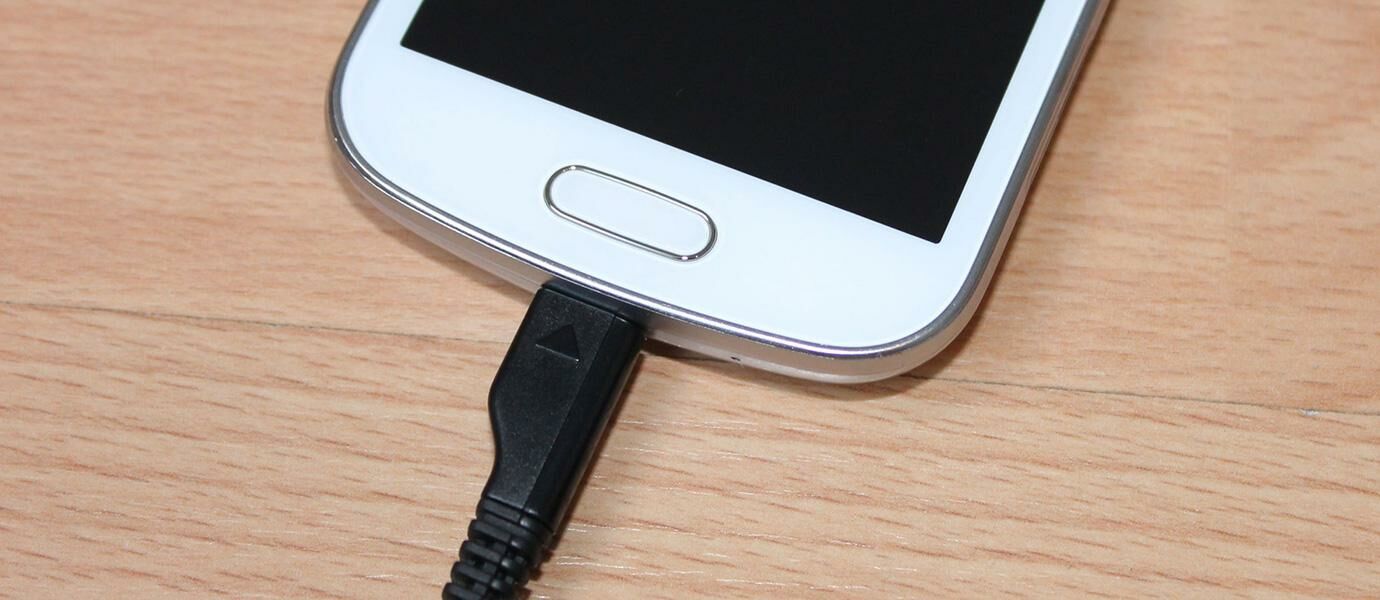
Cara Mengecek Kecepatan Pengisian Baterai Android

Jaman smartphone sekarang ini setiap perusahaan smartphone berlomba-lomba membuat smartphone dengan spesifikasi yang sangat tinggi demi mencapai point benchmark yang tinggi juga. Tidak hanya itu, setiap aplikasi juga bersaing memberikan fungsi yang terbaru, terlengkap, hingga grafis dengan resolusi tinggi. Yang menjadi masalah adalah baterai, dimana semakin berat maka semakin cepat juga habisnya. Maka tidak asing lagi ketika sekarang kita melihat banyak sekali baterai smartphone dengan kapasitas yang cukup besar.
Ada salah satu aplikasi gratis untuk kamu pengguna Android, yaitu Ampere. Aplikasi ini akan mengecek kesehatan dari baterai maupun charger kamu dengan melihat kecepatan ketika pengisian baterai. Pasti kamu pernah merasakan keadaan dimana memerlukan waktu yang sangat lama untuk mencapai 100%. Dengan aplikasi ini kamu dapat mengecek apakah ada kesalahan dalam pengisian seperti arus listrik (Ampere) yang kurang dan status pengisian. Di bawah ini adalah contoh data yang ditampilkan oleh Ampere.Tetapi perlu diketahui juga, ada beberapa metode dalam pengukurannya. Jadi perbedaan kabel, charger, hingga jenis smartphone akan menentukan hasilnya.

From ; Jalantikus
Read More..

Friday, March 4, 2016

Android Error Error generating final archive Debug certificate expired on …

One day I opened eclipse to start a new android application, after creating the project and trying to run it I received the following error:

[2010-08-27 15:32:04 – (Project Name)] Error generating final archive: Debug certificate expired on 7/30/10 10:42 PM!

After searching I found this link which suggests the solution: http://www.androidian.de/?p=940.

The problem comes from the fact that Android required the applications to be signed even in the debug mode. So it uses a keystore file called debug.keystore to providde keys for signing applications in debug mode. This key store file has a validity period by default 365 days from its creation date.

The First Solution:


Navigate to the .android folder in your home directory “~/.android” (Linux,Mac OS) or c:Documents and Settings[User Name].android in windows XP or C:Users.android in windows Vista or Windows 7, and delete debug.keystore file. Then go to eclipse clean the project, this will create a new debug.keystore file with default validity period 365 days.

The Second Solution:


Create a new default.keystore file with custom validity period (say 1000 days).
  1. Navigate to the .android folder.
  2. Delete the old default.keystore file.
  3. We will use JDK Keytool.exe to generate the new key file. It is found in C:Program FilesJavajre6 in in windows or inside the Javajre6 in folder in Mac OS or Linux.
  4. Open the terminal app in Mac OS or Linux or the command prompt and navigate to keytool.exe directory.
  5. Run the following command:
    keytool -genkey -keypass android -keystore debug.keystore -alias androiddebugkey -storepass android -validity 1000 -dname “CN=Android Debug,O=Android,C=US”
  6. This will generate a new default.keystore file with validity period 1000 days.
  7. Copy the generated file to the .android folder, go to eclipse and clean projects and it should work.
The above command has the following options:
  • genkey: generates a key pair.
  • keystore <Key Store Name>: the name of the key store file.
  • alias <alias name>: an alias for the key store. If the alias name is more than 8 characters the first 8 only are used.
  • storepass <password>: the password for the key.
  • validity <Validty Period>: the validity period for the key in days.
  • dname <name>: A Distinguished Name that describes who created the key. The value is used as the issuer and subject fields in the self-signed certificate.
Read More..